Gamers know the importance of fast internet because laggy games and slow internet can ruin their whole day. Imagine the internet dropping when you are about to win. The majority of PC users search for different ways to fix this issue, and one of the best is TCP Optimizer. In this article, we are sharing what it is, pros, cons, features, how to download it, and how to set it up.
What is a TCP Optimizer?
A TCP optimizer is a free tool that makes small changes to the settings in your computer, known as TCP/IP parameters. These settings control how your PC will send and receive data over the internet. The majority of people don’t find an issue with the default settings but they aren’t the best for gaming or fast browsing.
With the optimizer, you can adjust the MTU and RWIN, so the data moves more efficiently. It wouldn’t be wrong to say that this can help you improve the communication between your PC and the internet, which improves the connection’s speed and connectivity.
Why Use a TCP Optimizer? Main Features, Pros and Cons
Now that you know what this tool does, it must be clear why people use this tool so much. It gives people full control over the internet settings that you don’t see normally. This is a helpful tool if you stream videos, play online games, or download large files.
Main Features of TCP Optimizer
MTU Optimization: It adjusts the size of data packets. This means they travel more smoothly across your network.
RWIN Adjustment: It changes how much data your PC can receive at once. It can improve speed.
Network Adapter Tweaks: It lets you fine-tune adapter settings for better performance.
Built-In Speed Test: It allows you to check your results right after applying changes.
Pros
Free to use and simple to install
Gives advanced users more control over their network
Works as a solid FPS booster for certain older games
Can help as a ping reducer on some systems
Cons
Can be confusing for beginners
Wrong settings may cause connection problems
Improvements are not guaranteed for every internet plan, and there is no single set of best TCP Optimizer settings that works for everyone
Is It Safe to Use TCP Optimizer?
Yes, TCP Optimizer is the safe choice, but you have to download it from a trusted website. It only changes the settings in your Windows and won’t install anything. Still, it is smart enough to write down the original settings if you have to revert.
SG TCP Optimizer Free Download - Latest Version
Downloading SG TCP Optimizer is free and quick. The only thing you’ve to be careful about is downloading it from a trusted website. If you are looking for a TCP Optimizer download Windows 11 users can trust, always stick to official pages instead of random pop-up links.
How to Download SG TCP Optimizer Officially:
Step 1: Go to the official SpeedGuide download page by clicking on https://www.speedguide.net/downloads.php
Step 2: Look for the download button and click on it to start the download.
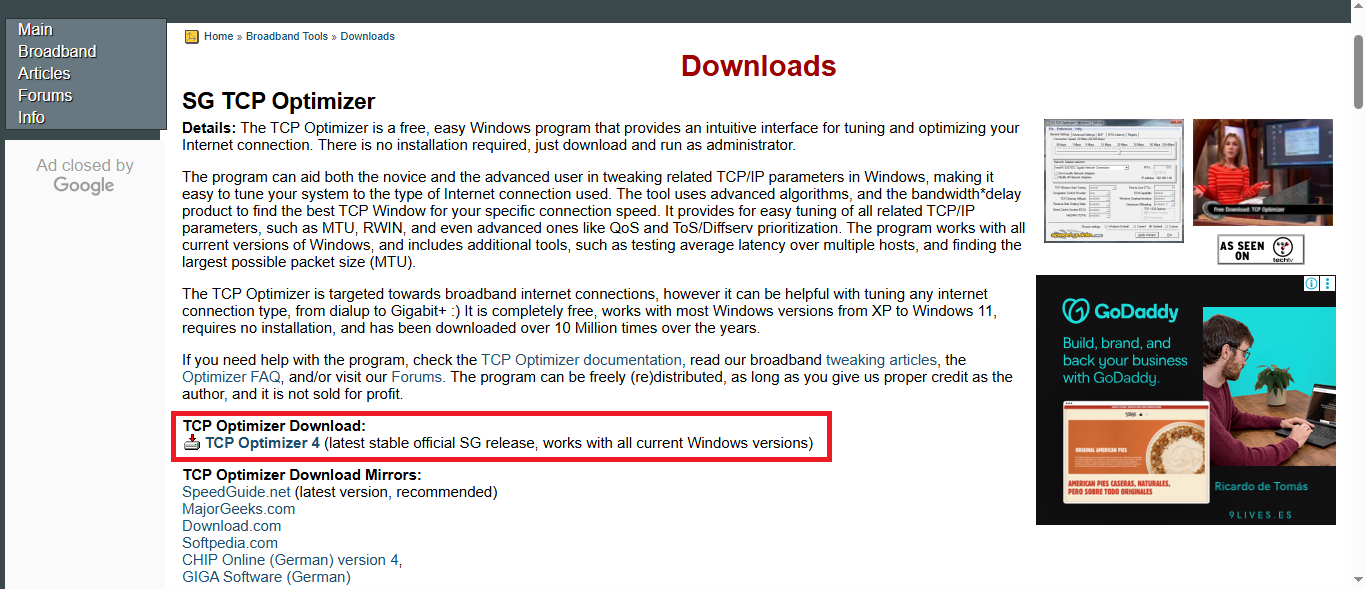
Step 3: Save the file, then open it to install the TCP Optimizer program on your PC.
TCP Optimizer Download Mirrors Recommended
SpeedGuide.net
MajorGeeks.com
Download.com
Softpedia.com
SourceForge.net
LO4D.com
Softfamous.com
These mirror sites are commonly used because they are well known and regularly checked for safety. Still, always confirm you are getting the newest version before installing anything.
How to Use TCP Optimizer on Windows for Faster Internet
Setting up TCP Optimizer Windows 11 is simple once you know what to look for.
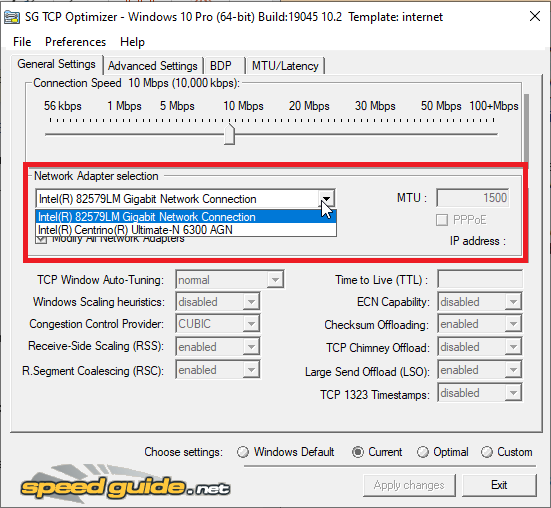
Step 1: Open the program and select your network adapter from the drop-down list at the top.
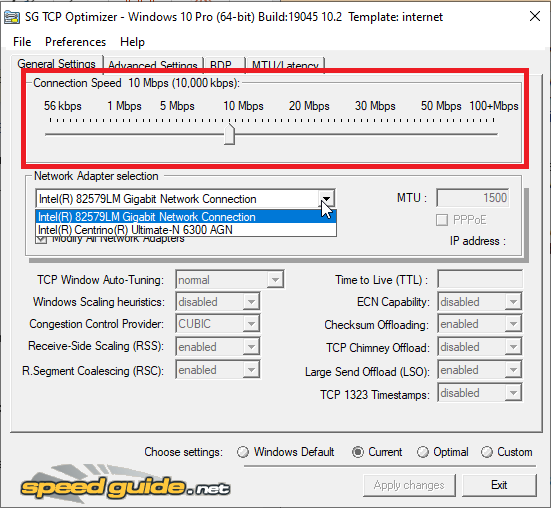
Step 2: Move the slider to choose your connection speed, such as broadband or fiber.
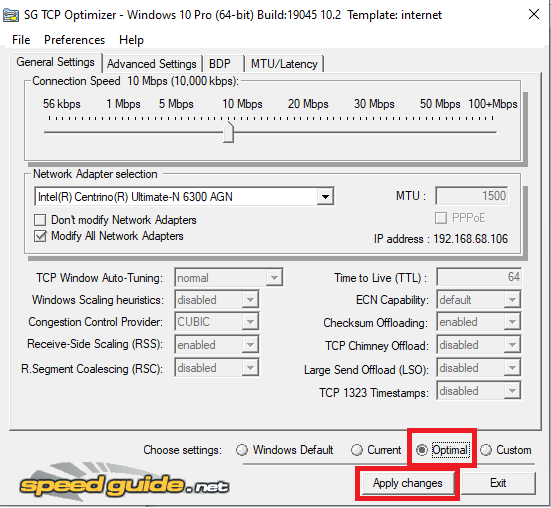
Step 3: Click "Optimal Settings," then press "Apply Changes" and restart your computer when asked.
After restarting, run a quick speed test to compare your results with your old settings. If your internet feels smoother, the changes worked. If not, you can always restore the default settings.
TCP Optimizer Best Setting for Gaming
If you play online games, using the right TCP Optimizer best setting can make a huge difference in how your connection feels during matches.
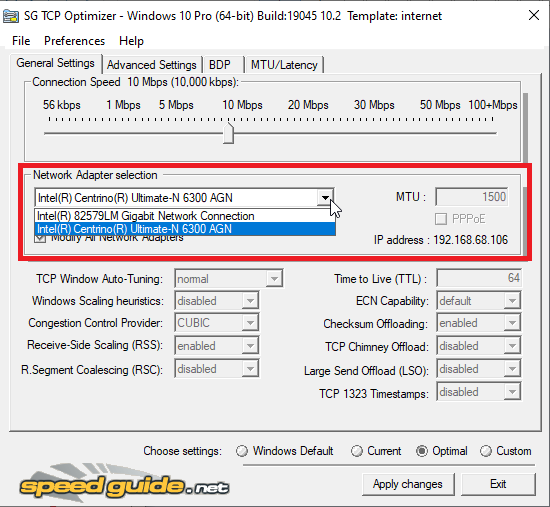
Step 1: Open TCP Optimizer and pick the Ultimate-N 6300 AGN network adapter.
Step 2: Set your connection speed slightly higher than your real speed to leave extra room for spikes.
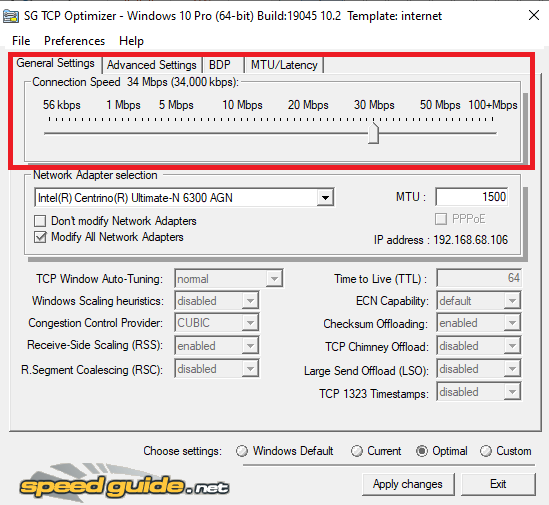
Step 3: Choose "Optimal Settings," apply the changes, then restart your PC before jumping into a match.
Many players search for the best TCP optimizer settings for gaming because they want a quick fix. However, the results depend on your router, ISP, and game server location. If you’re tired of dealing with a PUBG lag fix every night, just try this settings!
Windows TCP Optimizer Problems and Troubleshooting
Even careful TCP Optimizer Windows 11 users run into small problems sometimes. For this reason, we are sharing two quick solutions.
1. Internet Speeds Dropped After Applying Settings
This usually happens when the settings chosen were too aggressive for your actual connection speed. To fix this, you’ve to reopen TCP Optimizer and choose the default settings. Then, restart your PC and lower the speed settings.
2. Changes Won't Save / "Access Denied" Errors
This happens when you don’t open the optimizer with administrator rights. For this purpose, you’ve to right-click the TCP Optimizer. Then, choose “Run as Administrator” button before you make any changes.
An Easier Way to Boost Internet & PC for Peak Game Performance
If digging through network settings sounds stressful, you can use another simple solution. Smart Game Booster is an all-in-one tool that’s perfect for increasing your internet speed and PC performance. Remember, you won’t get confused by menus. In addition, you can use it as a modern substitute for a manual TCP Optimizer setup.
Key Features of Smart Game Booster
- Enjoy lag-free & low-ping gaming
- 100+ games supported
- Severs from all over the world
- Boost in-game FPS
Why Choose Smart Game Booster?
Network Acceleration for Faster Gaming: It connects through global servers to help lower delay, working as a helpful ping reducer during online play.
PC Boost to Increase FPS, Lower Ping: It frees up CPU and RAM usage so your games run smoother, acting as a true fps booster while cutting down lag.
PC Optimization for Top PC Performance: It cleans junk files, tweaks system settings, and updates outdated drivers automatically.
Run It Test for Trending PC Games: Wondering "can I run it" before buying a new game? This feature checks your system requirements instantly.
Strong Security & Account Protection: Built-in antivirus and firewall tools plus account guard features keep your PC safe while you play.
How to Optimize Internet & PC with Smart Game Booster
If you want to use the Smart Game Booster to optimize PC performance or internet speed, you can follow these steps.
Step 1: Free download and install Smart Game Booster from the official site.
Step 2: Choose or add a game, such as Valorant, from your library list.
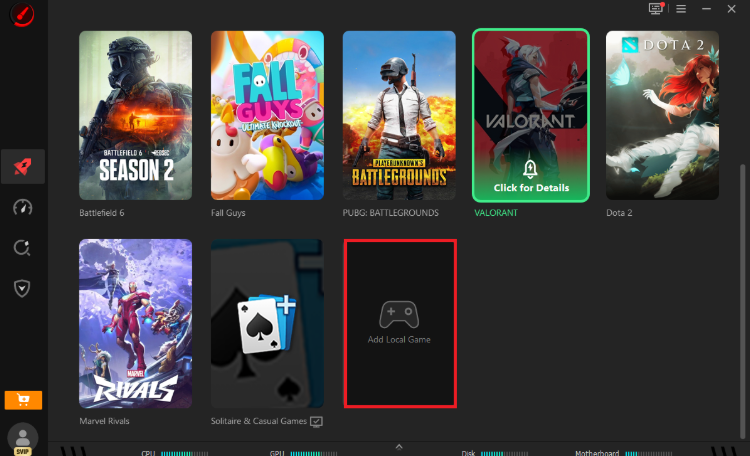
Step 3: Enable "Network Acceleration" and "PC Boost," then click "Accelerate Now" to start optimizing.
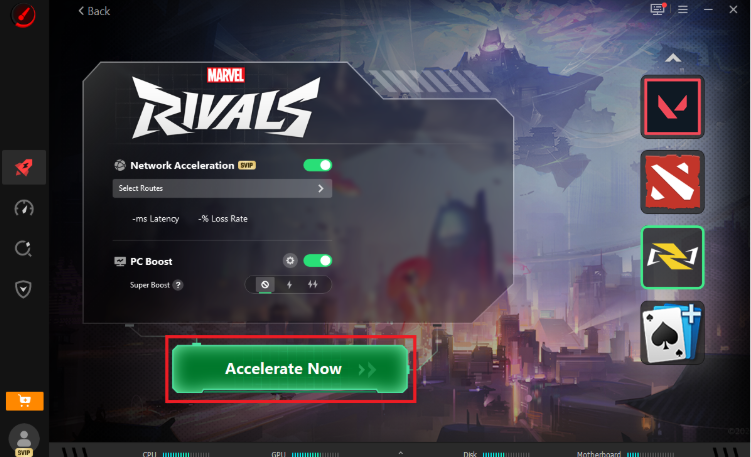
Step 4: Launch your game directly from the app and enjoy a smoother, faster experience.
It doesn’t matter if you want to know how to reduce lag in Roblox, want the best way to reduce ping in Fortnite, or, it can help. That’s because this kind of all-in-one tool often saves time compared to manually adjusting network settings.
Conclusion
A TCP Optimizer can help you fine-tune your internet connection. However, finding the right TCP optimizer best setting takes trial and error. In addition, it carries some risk if settings are wrong. For a faster, safer, and simpler solution, Smart Game Booster is a good choice, as you get network acceleration and PC optimization in one go. Download Smart Game Booster today and enjoy smoother and lag-free gaming.