Developed by the creators of Halo and Destiny, Marathon is a fast and tense extraction shooter. One sudden frame drop can cost you a fight and all your loot. If the Marathon FPS low, learning how to improve it is a smart move.
This guide covers the Marathon game best settings for FPS, then lists easy solutions for a Marathon FPS boost. You don't need a top-end PC. A few simple changes can make a big difference.
Quick Marathon Game Best Settings for FPS Cheat Sheet
| Setting |
Recommended |
| Window Mode |
Fullscreen |
| V-Sync |
Off |
| Upscaling (DLSS/FSR/XeSS) |
Balanced or Quality |
| Shadows |
Low |
| Effects |
Low/Medium |
| Post-Processing |
Low |
| Motion Blur |
Off |
| Textures |
Medium/High |
| Game Mode |
On |
Marathon Game Best Settings for FPS - Detailed Guide
To get the best settings for Marathon FPS boost, you need to balance image quality and performance. Menu names may change slightly between game versions, but the ideas stay the same. Let's go through the key settings one by one.
Resolution & Display Mode
Set Window Mode to Fullscreen. It usually gives better performance and lower input lag than Windowed or Borderless mode, because your PC can focus its power on the game.
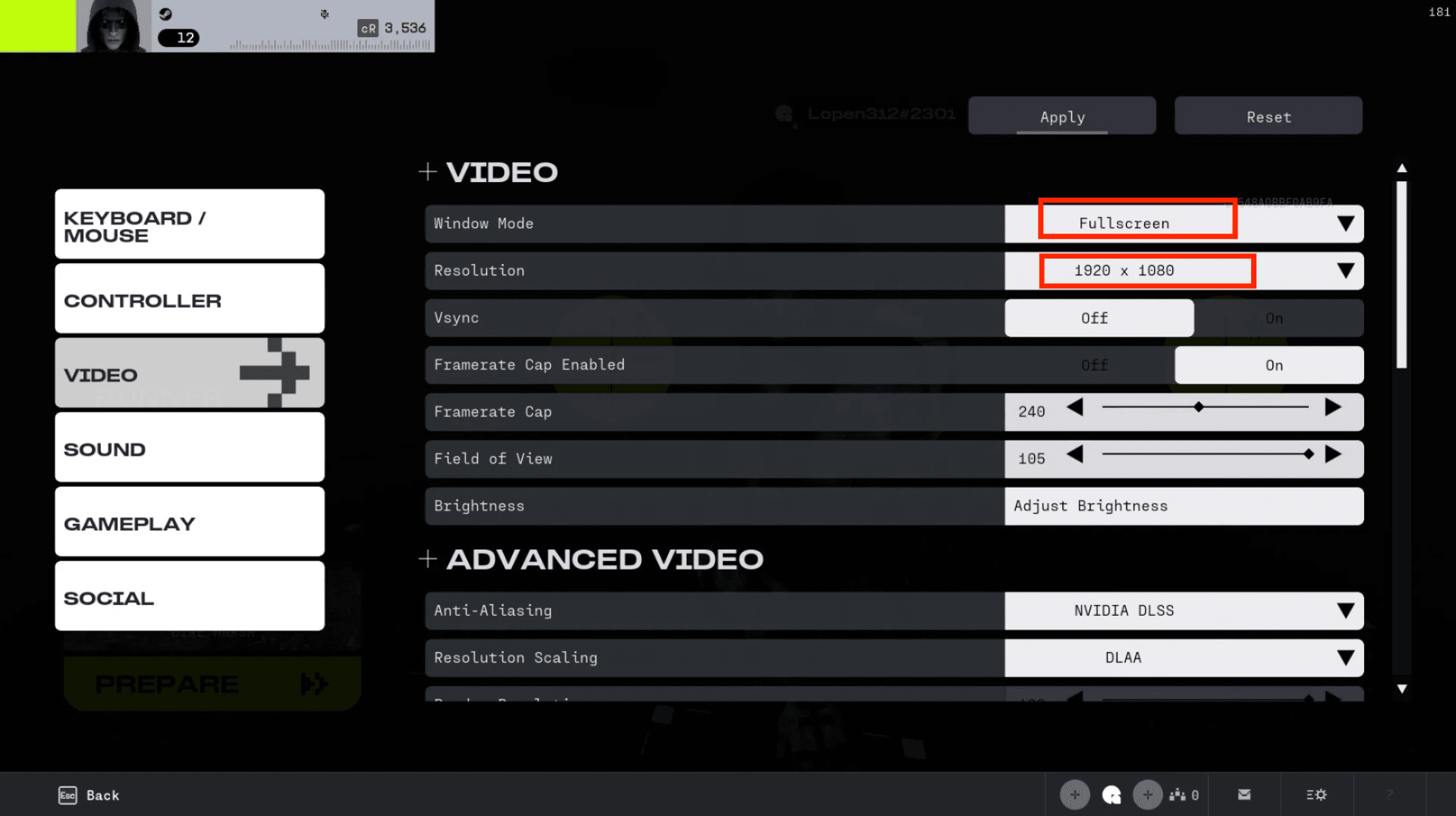
Use your monitor's native resolution, such as 1920 x 1080, for image sharpening in games. If your FPS is still low, drop one step, for example from 1440p to 1080p. This is one of the fastest ways to gain FPS.
Frame Rate Limit & V-Sync
Set the frame rate limit to match your monitor. For a 144Hz monitor, use 144. This keeps your GPU from running too hot for no reason.
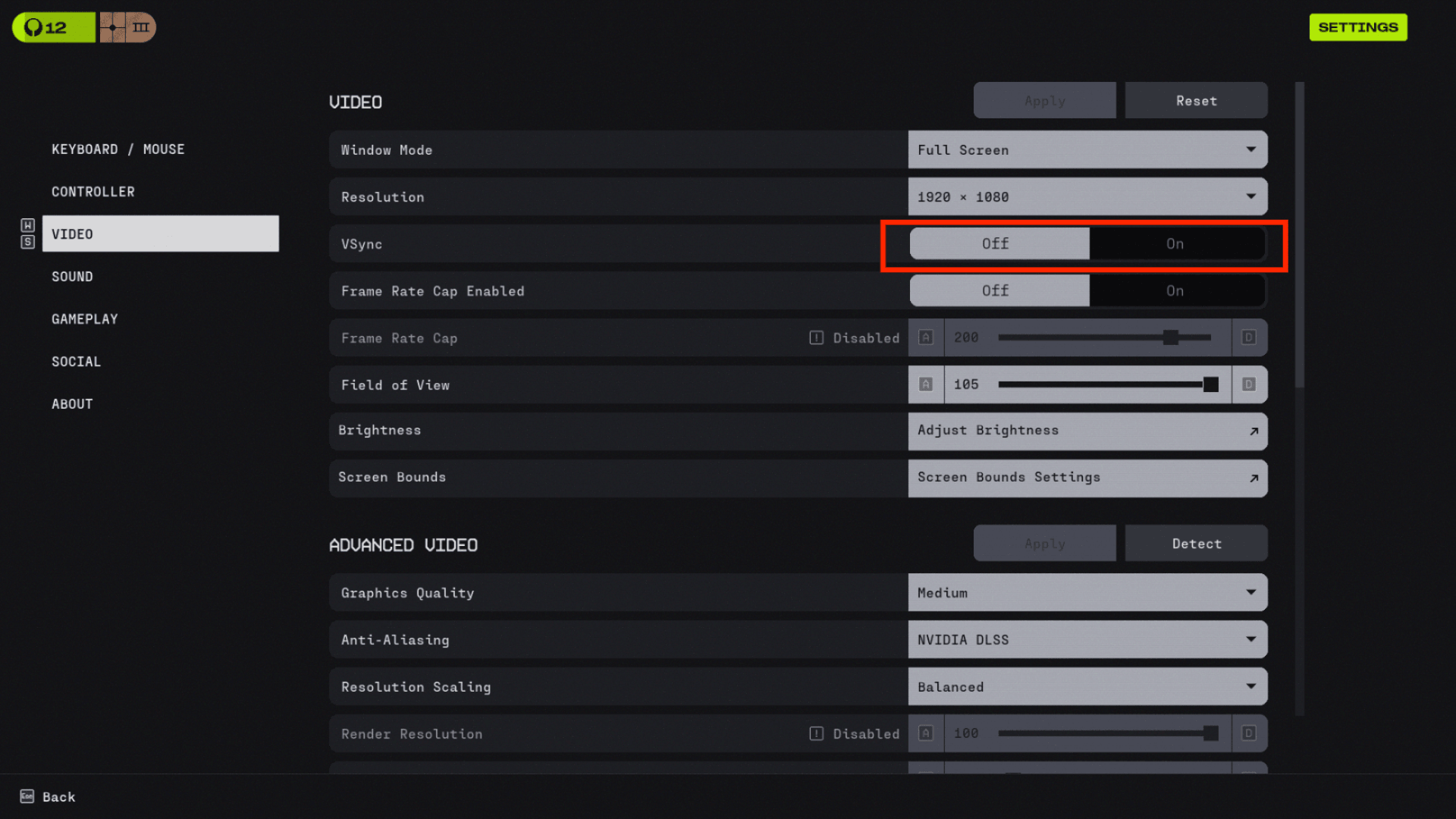
Turn V-Sync off, because it adds input lag. If you see screen tearing, use G-Sync or FreeSync instead.
Upscaling & Render Scale
If your PC supports NVIDIA DLSS, AMD FSR, or Intel XeSS, turn one on. These tools render the game at a lower resolution and scale it up, which can raise FPS a lot.
Quality: best image, small boost.
Balanced: a good middle choice.
Performance: biggest boost, softer image.
If you use a render scale slider, lower it a little below 100. This helps older PCs, but going too low makes distant enemies harder to spot.
Graphics Quality Settings
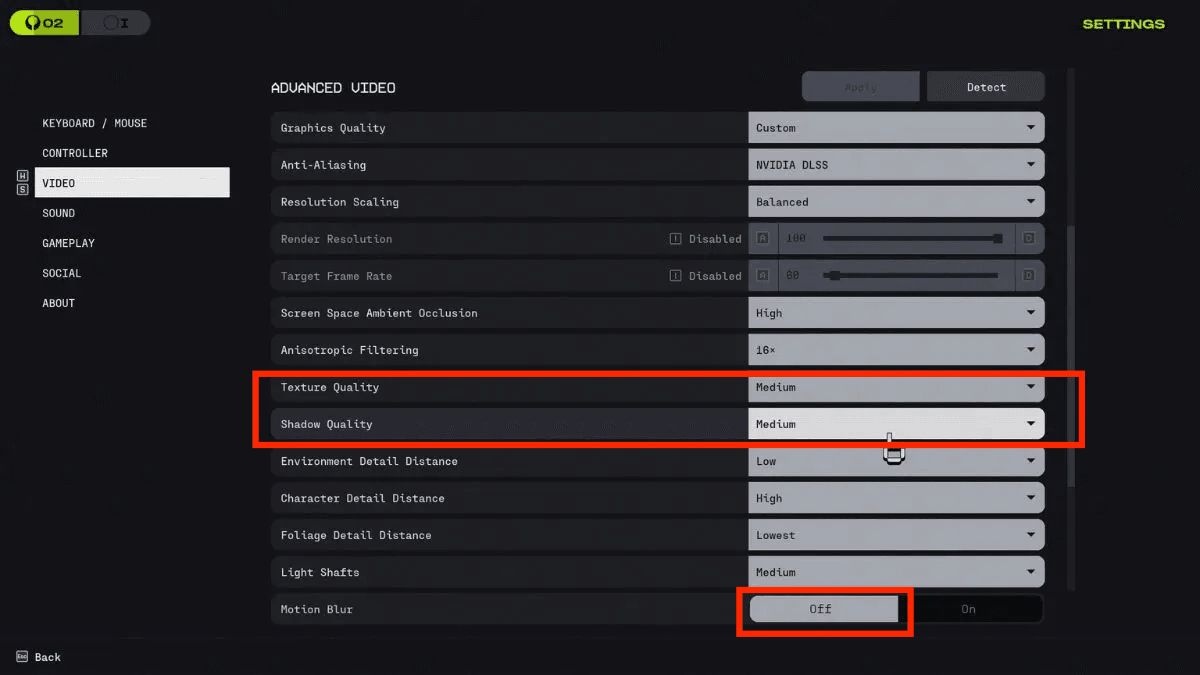
Shadows: Low or Medium. Shadows are one of the heaviest settings, and lowering them barely hurts how the game looks.
Motion Blur: Off. Turn off motion blur completely. It hurts your aim and costs FPS.
Textures: Medium or High. Textures use video memory (VRAM) more than GPU power. Use High if you have 8GB of VRAM or more.
OS & GPU Driver Optimizations
In-game settings are only half the job. Your PC also needs to be set up well.
Update your graphics driver. New games often get performance fixes in driver updates. Get the latest version from NVIDIA, AMD, or Intel to fix stutters and crashes.
Turn on Windows Game Mode. Press Win + I, click Gaming, then Game Mode, and switch it on. It helps Windows put your game first and limits background tasks.
Use a high-performance power plan. Go to Settings > System > Power and choose Best Performance. On a laptop, plug in the charger.
Enable Low Latency mode. In NVIDIA Control Panel or AMD Radeon Software, turn on the low latency option to cut response time.
More Solutions for Marathon FPS Low
If your FPS is still low after changing settings, try these fixes.
Close background programs. Browsers, launchers, and chat apps use RAM and CPU. Press Ctrl + Shift + Esc to open Task Manager and close anything you don't need.
Install Marathon on an SSD. An SSD loads maps and textures much faster than a hard drive, so you get less stutter and shorter load times.
Keep your PC cool. Heat makes your CPU and GPU slow down to protect themselves. Clean dust from the fans and keep your case ventilated.
Use a wired connection. Wi-Fi drops can feel like lag. An Ethernet cable gives you a steadier connection and lower ping.
Upgrade your hardware. If nothing helps, your PC may be too old. More RAM (16GB or more), a newer GPU, or an SSD are the best upgrades.
Use a game booster. If you don't want to do all this by hand, an automatic tool can do it for you. See the next section.
Best Marathon FPS Booster for: Smart Game Booster
Tweaking settings, closing apps, and changing power plans every time you play gets tiring. This is where an automatic tool helps. Smart Game Booster is a PC optimization tool built for gamers. It can boost your PC with one click, so it works well as an FPS booster for Marathon.
It is simple to use. Follow these steps:
Step 1. Download and install Smart Game Booster from the official website. It works on Windows 11/10/8/7.
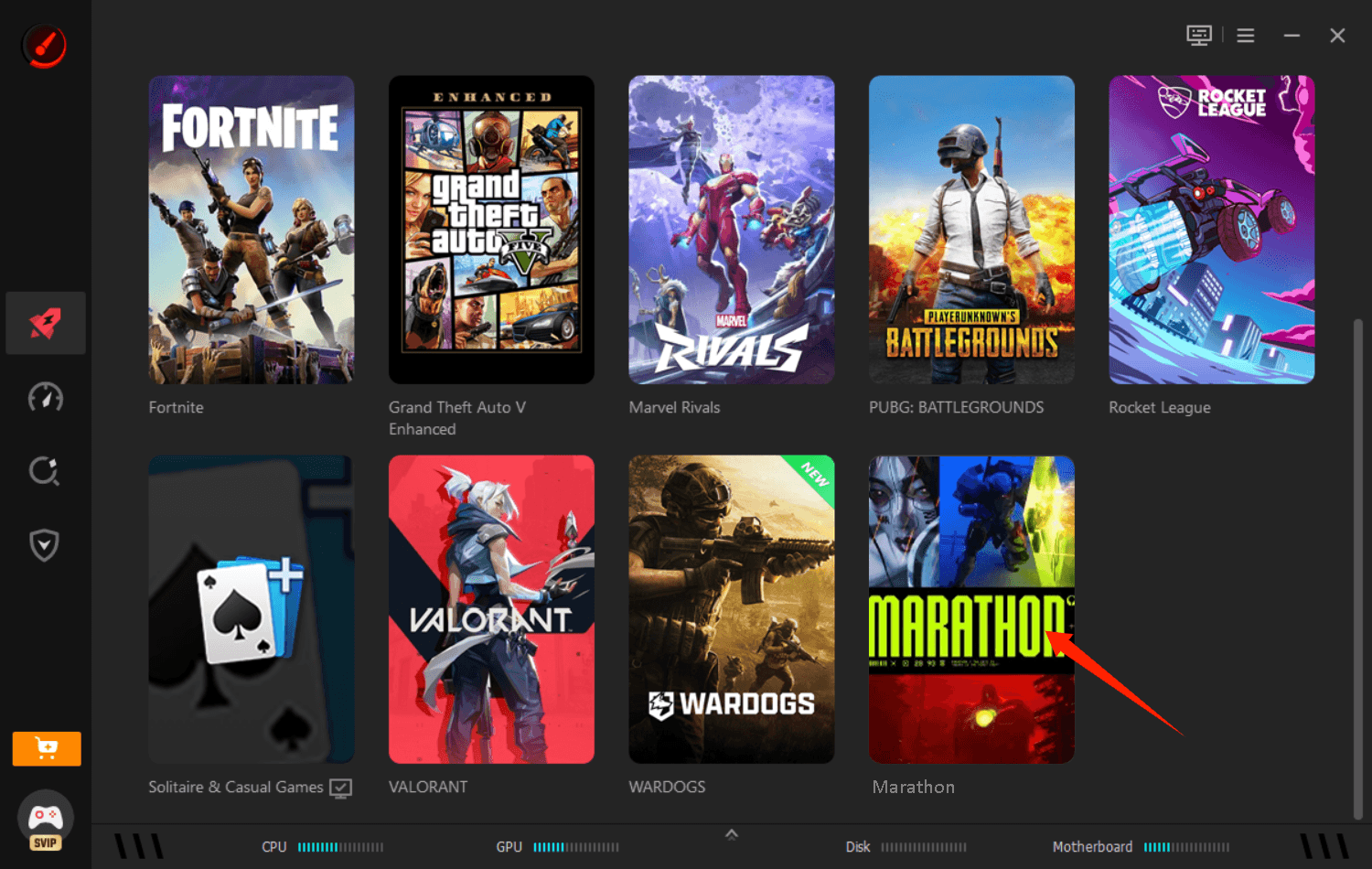
Step 2. Launch the program and add Marathon to the game list, so the tool can optimize your PC for it.
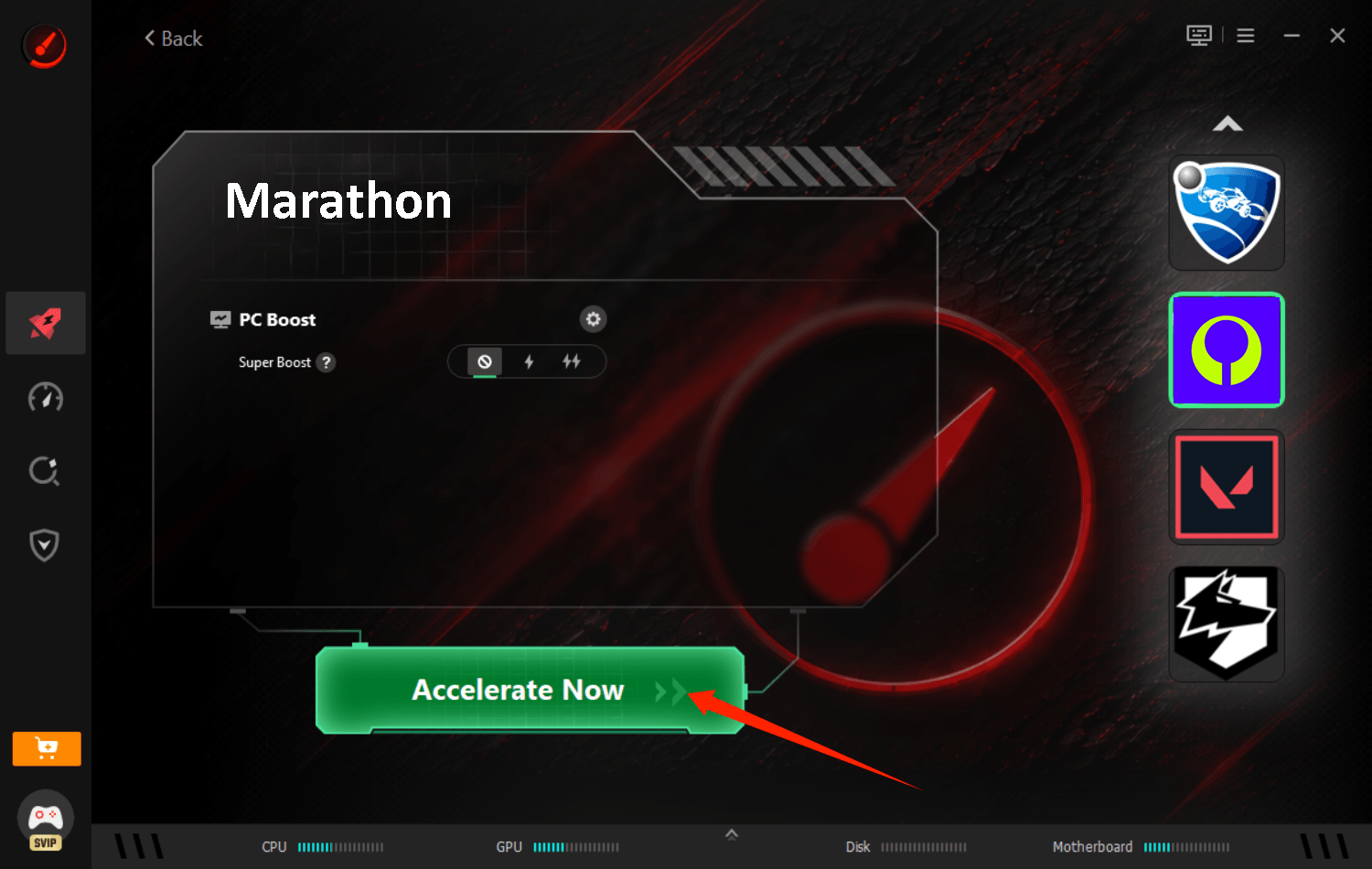
Step 3. Click Accelerate Now to free up RAM, close unneeded background tasks, and give your game more resources. Then start Marathon.
This FPS booster also offers many other useful features:
Driver update tool: helps you keep your drivers current.
Temperature monitor: tracks CPU and GPU heat, so you can avoid thermal throttling.
Wide game support: works with many popular games.
Reduce Packet & Ping: it can also work as a ping reducer to lower lag in online matches.
Can I Run It: this tool has a built-in Can I Run It feature to answer question like can my PC run Marathon.
It is a good fit for players who want better performance without digging through system menus.
Key Features of Smart Game Booster
- Enjoy lag-free & low-ping gaming
- 100+ games supported
- Severs from all over the world
- Boost in-game FPS
Final Words
Good FPS in Marathon comes from a mix of small steps. Start with the Marathon game best settings for FPS: use Fullscreen, turn off V-Sync and motion blur, lower shadows and effects, and enable upscaling. Then update your drivers, turn on Game Mode, and close background apps. If you want an easier way, download Smart Game Booster and let it handle the cleanup with one click.
Change one setting at a time so you can see what really helps. With a little tuning, you can enjoy smooth, fast gameplay and stay ahead of the competition. Good luck out there, Runner!