Let’s be honest: few things in Counter-Strike 2 feel worse than landing a perfect spray and watching the server say “nope.” You check the scoreboard, and your ping is sitting somewhere ugly. Ping is the round-trip time your data takes to reach the server and come back, and in a game built on split-second trades, every extra millisecond reshapes the fight before you even realize it. This guide walks through why high ping happens in CS2 and, more importantly, how to lower ping in CS2 for gameplay that feels fair again.
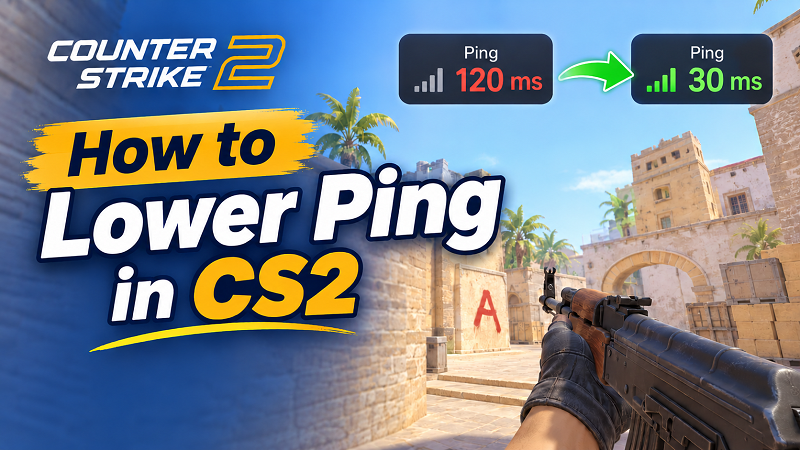
What Is a Good Ping in CS2?
You can see your live ping without installing anything: hold Tab during a match and look beside your name on the scoreboard. For a deeper read—ping, packet loss, and choke all in one place—bind net_graph 1 or run cq_netgraph_problem_show_auto 1 in the console. A quick external CS2 ping test to a Valve datacenter before you queue also tells you what your line is actually capable of on a good day. Here’s the practical range players care about.
Under 20 ms: Excellent—inputs feel immediate, and you can hold your own in peeker’s-advantage duels
20–40 ms: Good—rankable; most fights feel fair, though the fastest swings can still go against you
40–70 ms: Playable—close-range 50/50s and tight trades start slipping away
70 ms+: Disadvantage—hit registration feels late, and angles you should win start going the other way
A steady 45 ms will almost always feel better than a connection bouncing between 20 ms and 90 ms, because inconsistency itself creates the desync that makes CS2 feel broken—an important point for anyone asking how to lower ping in CS2.
What Causes High Ping in CS2?
Before fixing anything, it helps to know where the delay is coming from, especially if you're trying to learn how to fix high ping in CS2. Here are the usual suspects:
Physical distance to the server. Distance sets a hard minimum for latency; playing on a distant datacenter will always cost you milliseconds.
Low internet speed. CS2 uses very little bandwidth, so an unstable connection under load matters far more than a “slow” plan on paper.
Broadband bandwidth usage by other apps. Downloads, cloud backups, and streaming can queue your game packets and cause latency spikes.
ISP congestion. Peak-hour traffic and poor routing upstream can raise ping even when your home network is fine.
Outdated network drivers. Old adapter drivers can add unnecessary packet-processing overhead—keep them updated.
Poor-quality game servers. Server-side congestion often shows up as choke; it’s not always your connection.
Check antivirus programs. Real-time scanning can inspect game traffic, so test with it temporarily disabled to rule it out.
How to Lower Ping in CS2
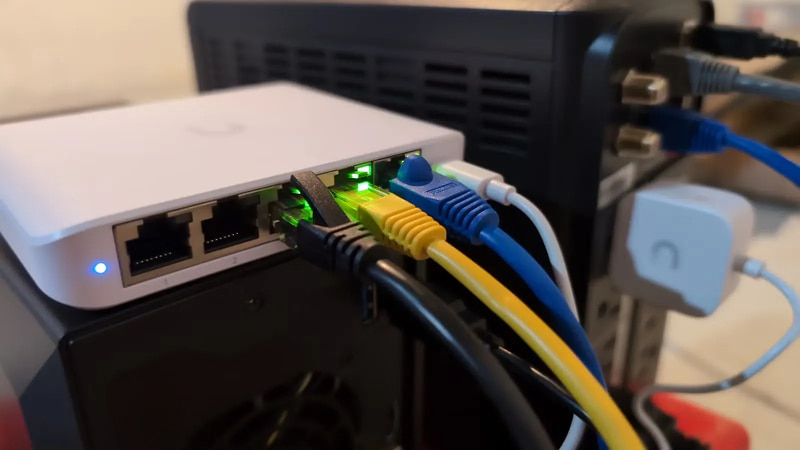
1. Ditch Wi-Fi for Ethernet
This is the highest-impact free change most players can make when it comes to how to reduce high ping in CS2. Wi-Fi introduces jitter—variable delay from interference, walls, and shared airwaves—and CS2’s precise sub-tick timestamps make that inconsistency more visible, not less. A wired Ethernet run typically shaves 20–50 ms off unstable Wi-Fi ping and removes the rubber-banding that comes from a signal dipping mid-duel. If a direct cable to the router is impossible, a powerline adapter is a better compromise than staying wireless.
2. Turn On QoS on Your Router
Quality of Service is the router feature almost nobody touches, and it’s one of the most practical answers to how to lower ping in CS2 when the problem is ping spikes rather than your average ping. When someone else in the house starts a 4K stream or a large download, your CS2 packets get stuck behind those bulk transfers. QoS tells the router to prioritize gaming traffic, so your packets jump the queue instead of waiting.
Log into your router’s admin panel (usually 192.168.1.1 or 192.168.0.1), find the QoS, Game Mode, or Adaptive QoE section, and either enable gaming priority or manually add your PC as the top-priority device. On many routers, the gaming preset is enough—you don’t need to build complex rules.
3. Use a Game Booster to Reduce Ping in One Click
If you’d rather not hop between router panels, Windows settings, and server browsers every time you queue, a dedicated booster consolidates the work. Smart Game Booster is built around the reality that lag is usually two problems at once—one on the network side and one on the system side—and treats them together instead of one at a time—which is exactly why it’s a practical answer to how to lower ping in CS2. Here’s what makes it relevant to CS2 specifically.
Key Features of Smart Game Booster
- Enjoy lag-free & low-ping gaming
- 100+ games supported
- Severs from all over the world
- Boost in-game FPS
Change optimized gaming server to reduce ping. Network Acceleration routes your game traffic through 500+ dedicated game servers worldwide, shortening the path between your PC and the CS2 datacenter. It helps most during peak hours, when shared routes congest.
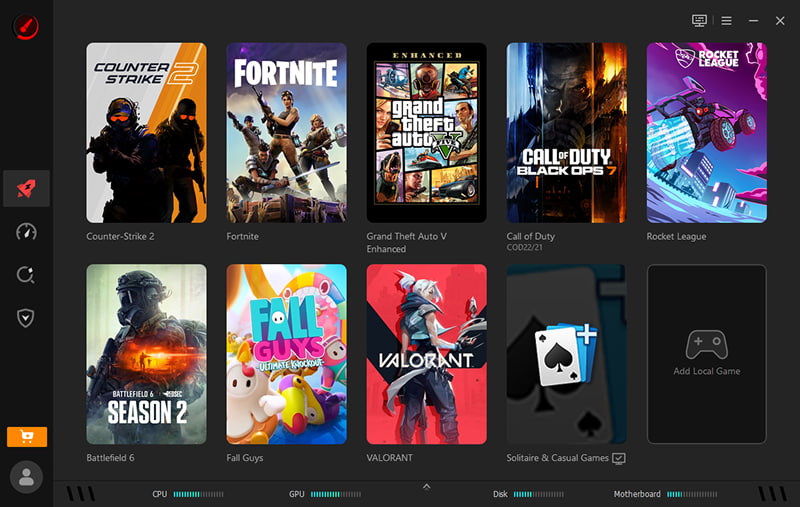
One click to overclock GPU and VRAM. Ping and frame stability are different issues, but they affect the same fights. Super Boost overclocks your GPU and VRAM in one click, helping hold frame rates steady in smoke-heavy executes and crowded engagements. If you also want to improve FPS in CS2 while lowering ping, this covers the hardware side.
One click to close bandwidth-heavy programs. PC Boost disables unnecessary background apps and services that consume CPU, RAM, and upstream bandwidth. It catches updaters, launchers, and sync clients you forgot were running—the exact processes that add queuing delay without showing up in a speed test.
The appeal isn’t magic. It’s a practical answer to how to lower your ping in CS2: the network route, the hardware headroom, and the background cleanup happen in one place, before your first duel, instead of after you’ve already lost three rounds to delay.
4. Close Background Programs Manually
If you prefer to keep things hands-on when learning how to lower ping in CS2, open Task Manager (Ctrl + Shift + Esc), sort by the Network column, and close anything actively transferring data. The usual offenders: cloud sync clients, auto-updating launchers, torrents, and browser tabs with video. Pausing Windows Update and Steam downloads before you queue is a two-click habit that removes a surprising amount of unnecessary latency.
5. Select the Closest Server
CS2 gives you more control over how to reduce ping in CS2 than many players realize. Go to Settings, choose Game and lower Max Acceptable Matchmaking Ping—a starting point of 50–60 ms is reasonable for most regions. You can also use the console: mm_dedicated_search_maxping 50. The tradeoff is longer queues during off-peak hours, but the matches you do get will be on servers close enough to compete on. If you specifically want to change server in CS2 outside ranked, the community server browser displays live ping per server, so you can sort and pick the lowest one before joining.
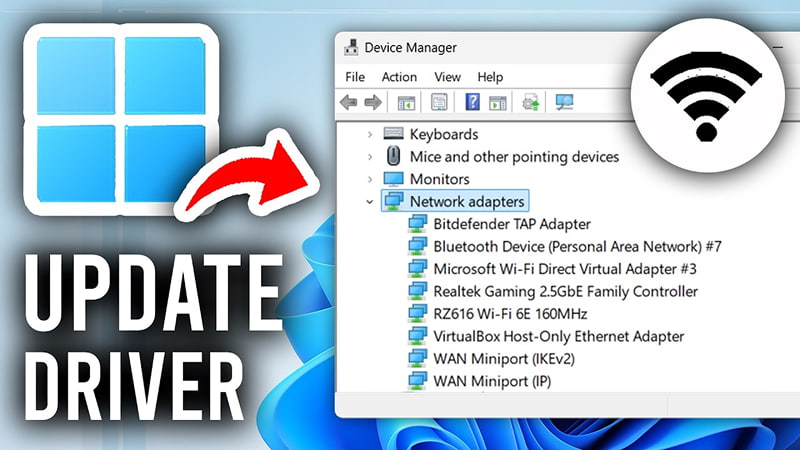
6.Update Your Network Card Drivers
Open Device Manager (use Win + X and choose Device Manager), expand Network adapters, right-click your adapter, and choose Update driver. Better yet, grab the latest driver directly from your motherboard or network card manufacturer’s website—Windows Update sometimes lags behind on NIC-specific fixes. While you’re in the adapter’s properties, check the Advanced tab for Interrupt Moderation and consider disabling it; it’s not a universal fix, but on some Realtek and Intel adapters it reduces the micro-delay added by packet batching—one small but practical step in how to lower ping in CS2.
7. Change Your DNS Servers
DNS doesn’t change your in-game ping once you’re connected—a common misconception among players searching for how to lower ping in CS2. What a faster resolver can do is reduce the lookup delay when CS2 or Steam is finding a server or authenticating, which shaves time off the front end of a session rather than the duel itself. Cloudflare (1.1.1.1 / 1.0.0.1) and Google (8.8.8.8 / 8.8.4.4) are the two reliable picks.
Open Control Panel and navigate to Network and Sharing Center > Change adapter settings. Right-click your network adapter, select Properties, and configure the IPv4 settings. Then, open Command Prompt and run ipconfig /flushdns to clear your DNS cache.
Conclusion
High ping in CS2 isn’t one problem—it’s distance, routing, background traffic, and system overhead all showing up in the same scoreboard number. The fixes that matter most are unglamorous: go wired, enable QoS, cap your matchmaking ping, and keep your drivers current. When you want the network route, hardware headroom, and background cleanup handled in one pass, Smart Game Booster puts them behind a single click. If you’re serious about how to lower ping in CS2 for good, start with the free fixes and let the booster cover the rest.