Imagine you are lining up the ultimate headshot in PUBG, and when you click the mouse, your character starts teleporting across the terrain while bullets miss completely in a snap. It usually happens due to network spikes and server rubberbanding, which can ruin even the most promising match.
If you are tired of losing gunfights because of poor connection quality, you are in the right place. This article will show you how to fix packet loss in PUBG using powerful software acceleration and reliable manual troubleshooting methods so you can enjoy your game without any trouble.
What Is Packet Loss & Symptoms in PUBG
So what is packet loss in PUBG, exactly? It happens when some of the data your PC sends to PUBG's servers never arrives, so the game has to guess what happened in between. The common signs are:
Enemies teleporting or snapping into new positions
Shots that clearly land but don't register as damage
You're pulled back to an earlier position
Random freezes followed by a burst of catch-up movement
Getting killed by someone you never actually saw on screen
Why Did You Get Packet Loss in PUBG
Before you go looking for a packet loss PUBG fix, it helps to know what's actually causing PUBG packet loss spikes, since they're often stacked on top of each other:
1-Stop PUBG Packet Loss Fix via Dedicated Network Acceleration
Looking for the fastest packet loss PUBG fix? If you'd like a comprehensive lag-reducing and FPS-boosting tool, elevating your PUBG gaming experience in one pass, Smart Game Booster is built for exactly this. It's an all-in-one FPS and ping booster that pairs dedicated network acceleration with full PC optimization, so it tackles lag caused by packet loss and low frame rates in the same tool instead of three separate apps.
Key Features of Smart Game Booster
- Enjoy lag-free & low-ping gaming
- 100+ games supported
- Severs from all over the world
- Boost in-game FPS
Here's what it brings to the table:
• 0 Packet Loss & Buttery Smooth PUBG & More Games: It routes your traffic through dedicated servers chosen by distance and real-time conditions, instead of your ISP's default, often congested path, which is what actually drives packet loss down.
• FPS Boost for PUBG and Any Game for Free in 1 Click: The free FPS Booster auto-overclocks your GPU and VRAM, tweaks system settings, and shuts down resource-hungry background apps, building an optimized game-running environment for PUBG and any other added games for smoother gameplay.
• Further PC Optimization for Next-Level Boost: Beyond the game session itself, it cleans junk files, applies system tweaks, updates outdated drivers, and defrags game files so load times and stutter improve too.
• More Gaming-Friendly Features for Better Experience: You also get an in-game FPS/CPU/GPU monitor HUD, a game compatibility test via Can I Run It, a PC rating test, and a security guard that checks for malware and leaked account data.
How to Fix Packet Loss in PUBG with Accelerated Network?
Step 1: Download. Grab Smart Game Booster and install it on your PC.
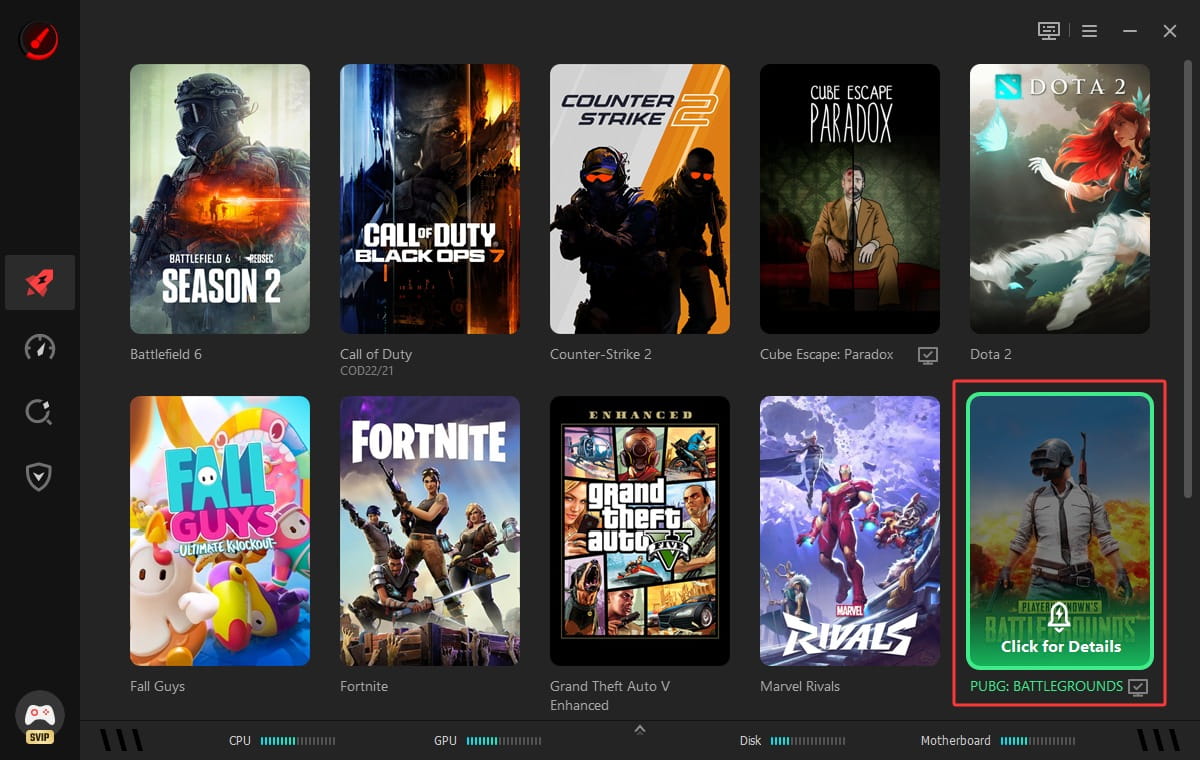
Step 2: Choose Game. Open the app and select PUBG from the game library, or add it manually if you don't see it listed.
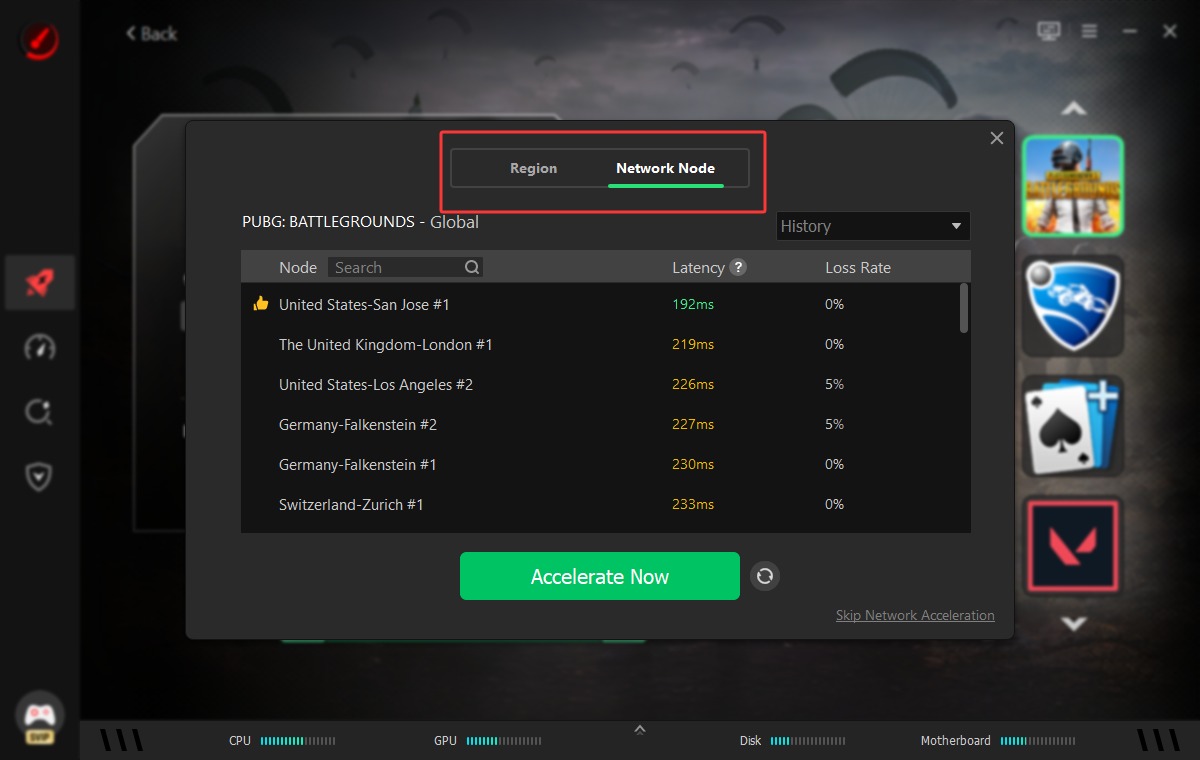
Step 3: Customize Routes. Turn on Network Acceleration, then use Smart Node to let the app pick the fastest, most stable route automatically, or switch regions and routes yourself if you want more control.
Step 4: Activate PC Boost & Launch Game. Enable PC Boost to overclock your GPU and VRAM and free up system resources; click Accelerate Now.
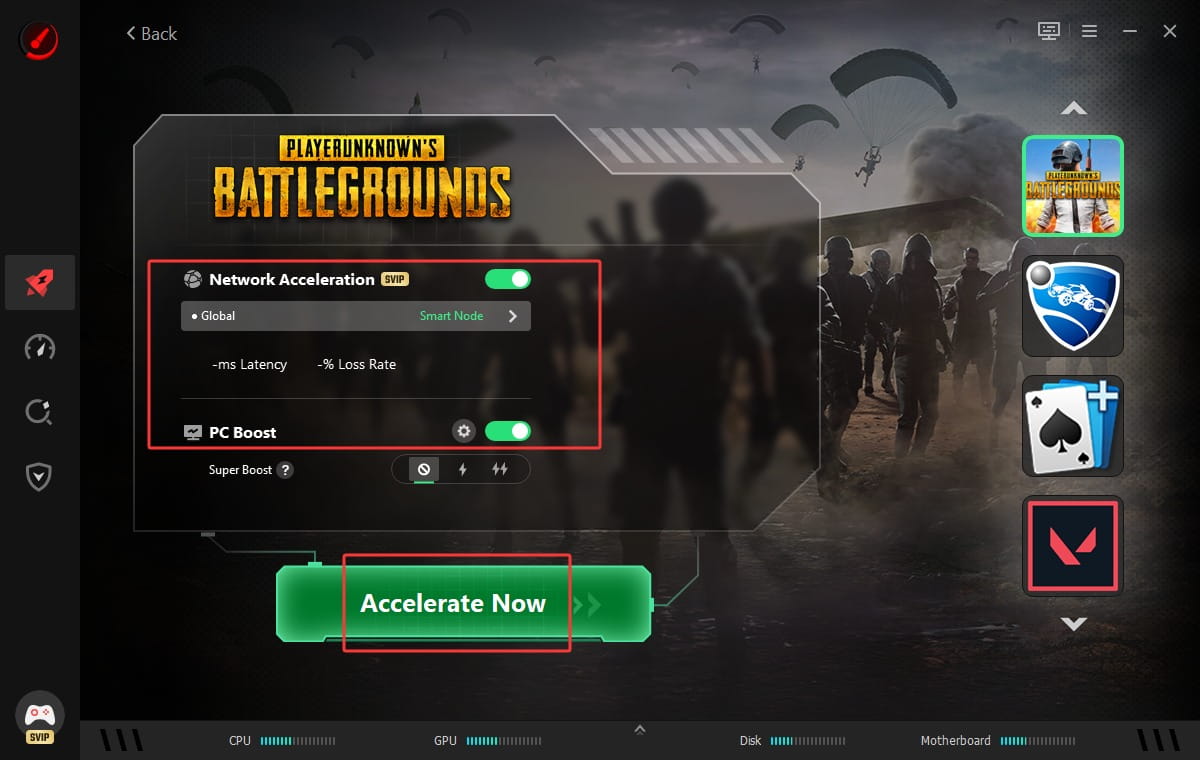
Then click Launch Game and head straight into your match. Also, turn on the HUD to show PC game FPS in real time.
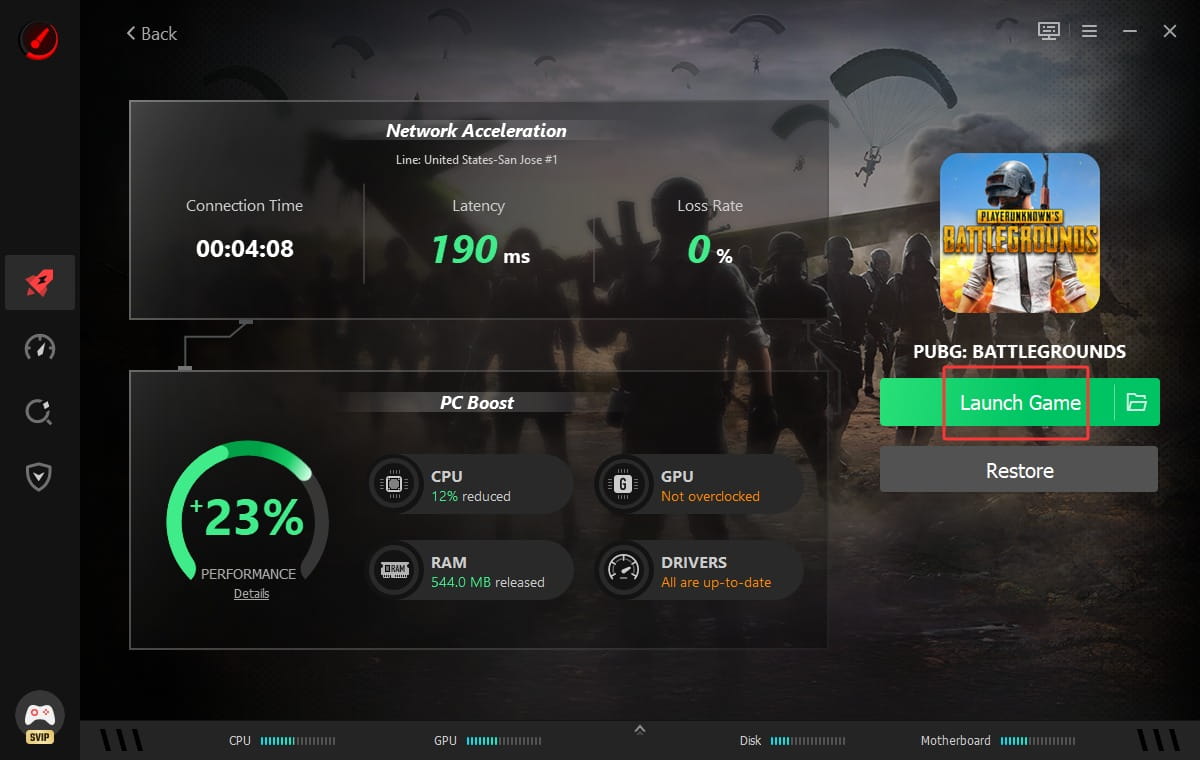 This is how you fix PUBG lag with a powerful game booster.
How to Fix Packet Loss in PUBG PC Manually
Apart from using the professional Ping Reducer, if you prefer a hands-on PUBG packet loss fix, you can run through these yourself first as well. These six checks cover the usual suspects behind packet loss in PUBG, starting with the easiest and working toward the ones that depend on your ISP.
1. Use Ethernet - Easiest Packet Loss PUBG Fix
Wi-Fi is convenient, but it's also the single biggest source of dropped packets for most players. Walls, distance, and interference from other wireless devices all chip away at your signal, and that shows up as packet loss even when your internet plan is fast enough.
Step 1. Connect an Ethernet cable directly from your router to your PC.
Step 2. In Windows, confirm the connection shows as Ethernet rather than Wi-Fi under Network & Internet settings.
Step 3. Launch PUBG and check whether the teleporting or rubberbanding has calmed down.
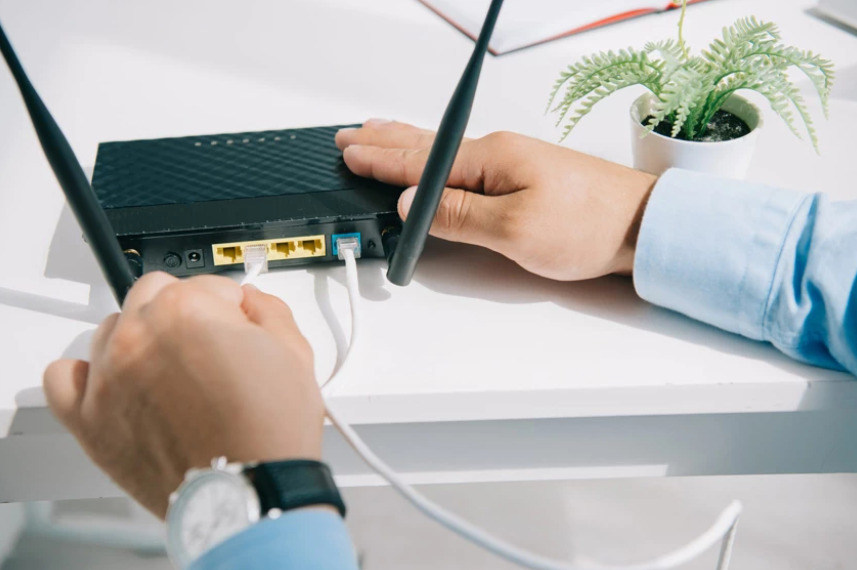
2. Restart Network & PC
A quick restart clears out temporary glitches in your router's memory and your PC's network stack, both common, boring causes of packet loss that are easy to overlook.
3. Disable VPN & Background Apps That Consume Bandwidth
A VPN adds an extra hop your traffic has to pass through, and that extra hop is one more place for packets to drop. Background apps quietly syncing files or streaming video eat into the same bandwidth PUBG needs for smooth updates.
Step 1. Disconnect any VPN before you queue into a match.
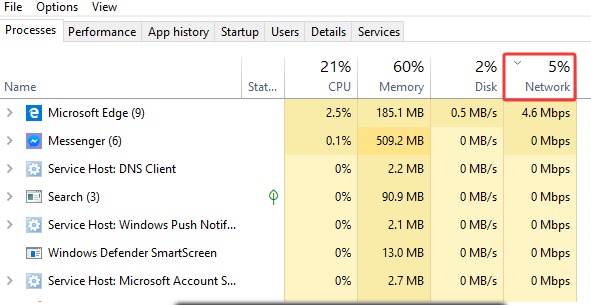
Step 2. Open Task Manager and check the Network column under the Processes tab.
Step 3. End any task pulling heavy bandwidth, like web browsers, cloud backups, or background downloads.
4. Flush DNS Cache to Reduce Packet Loss in PUBG
Your PC stores DNS lookups so it doesn't have to ask every time, but a stale or corrupted cache can send your traffic down a slower or broken path, worsening packet loss in PUBG even when the rest of your connection is fine.
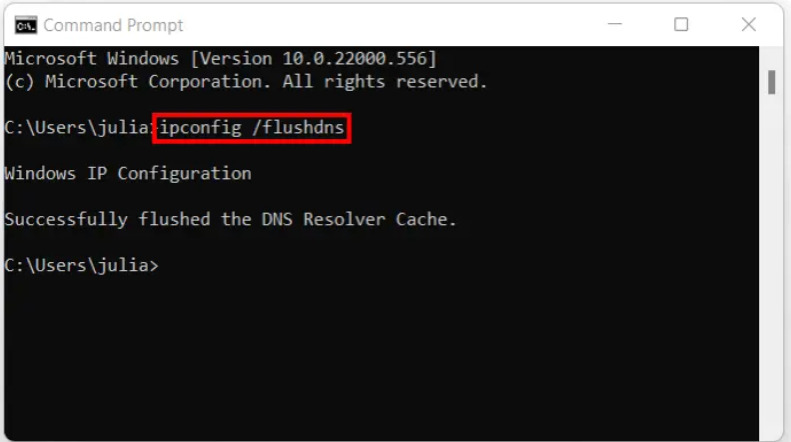
Step 1. Search for Command Prompt, right-click it, and choose Run as administrator.
Step 2. Type ipconfig /flushdns and press Enter.
Step 3. Wait for the confirmation message, then restart PUBG.
5. Update Network Driver to Address PUBG Packet Loss
An outdated, corrupted, or missing network driver can drop packets even on a strong connection, since it's the software translating data between Windows and your network adapter.
Step 1. Press Windows + X and open Device Manager.
Step 2. Expand Network adapters, right-click your adapter, and choose Update driver.
Step 3. Select Search automatically for drivers and restart once it finishes.
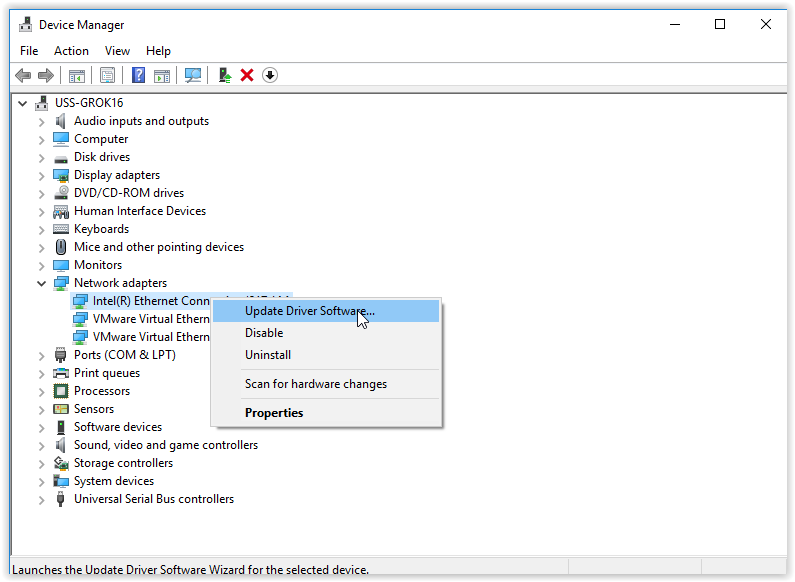
If Windows says you already have the best driver, that's often not the newest one available. Driver Booster can scan your whole PC in one click and pull the latest network, graphics, and other game-related drivers straight from the manufacturer, which is worth trying before you rule the driver out as the cause.
6. Check Your Router and ISP
Sometimes the problem isn't on your end at all. If the packet loss shows up across multiple games, not just PUBG, your router or your ISP is the more likely culprit.
If the packet loss occurs across multiple games, the issue is probably upstream of your PC. Connect with a wire directly to the modem, bypassing your router, to see if the problem disappears. You can also run a packet loss or speed test at a few different times of day to spot patterns tied to peak hours.
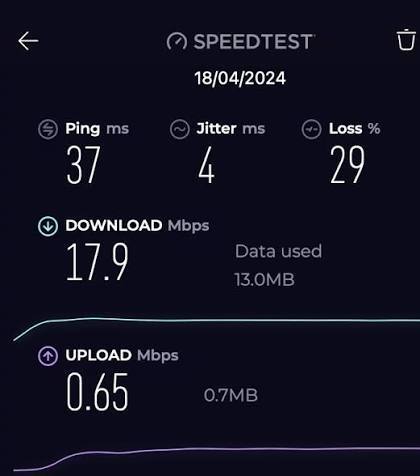
If the problem persists across devices and games, contact your ISP with your test results so they can check the line or send a technician.
Final Thoughts
A reliable packet loss PUBG fix rarely comes from one single change. Packet loss in PUBG rarely has one single cause, so working through Ethernet, restarts, VPN checks, DNS flushes, and driver updates will clear most cases. For a faster fix, how to fix packet loss in PUBG comes down to one click with Smart Game Booster's dedicated network routes. Download it and get back to clean, consistent gunfights.