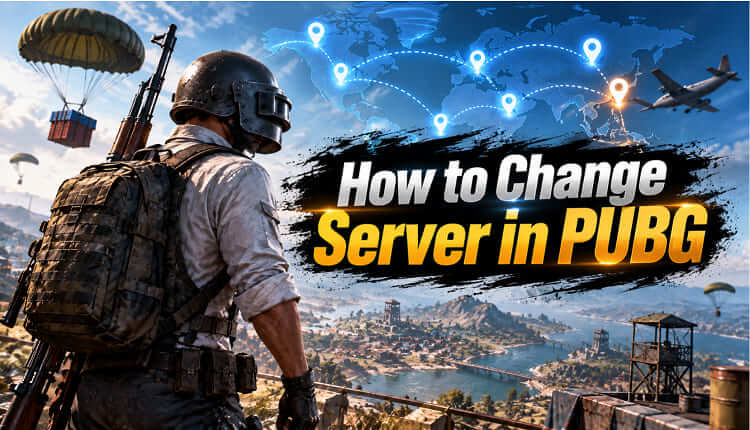
Want to know how to change server in PUBG because of high ping, lag, or matchmaking problems? PUBG handles servers differently on PC and mobile, so you may not always find a simple region selector. This guide explains how PUBG server selection works, how to check or change your region where possible, and how to reduce performance problems with network optimization and Smart Game Booster.
Can You Change Your Server in PUBG?
Yes, but PUBG on PC generally does not provide a simple manual server-region selector that lets you freely switch between regions whenever you want. Matchmaking normally determines the appropriate server based on factors such as your location, network conditions, and available players. If you want to know how to change your server in PUBG, your practical options are more limited.
Keep in mind that connecting to a more distant server can increase ping. For smoother PUBG gameplay, the best server or route is usually the one offering lower latency, less packet loss, and a more stable connection.
How to Change Server on PUBG PC
How to change server on PUBG PC? PUBG PC does not normally provide a direct setting that lets you manually choose a matchmaking server or region. The game generally assigns your matchmaking region automatically, so you cannot simply open Settings and switch from one server to another.
However, there are a few ways to play under different regional conditions:
Method 1. Join a Friend From Another Region
Team up with a friend who plays from another region and enter matchmaking together. The server used for the party can depend on PUBG's matchmaking system, so this method does not guarantee a specific region.
Method 2. Use Custom Matches
Custom Matches provide more control than normal matchmaking. When creating a supported custom match, check the available server or region options and select the appropriate one if PUBG currently provides that choice.
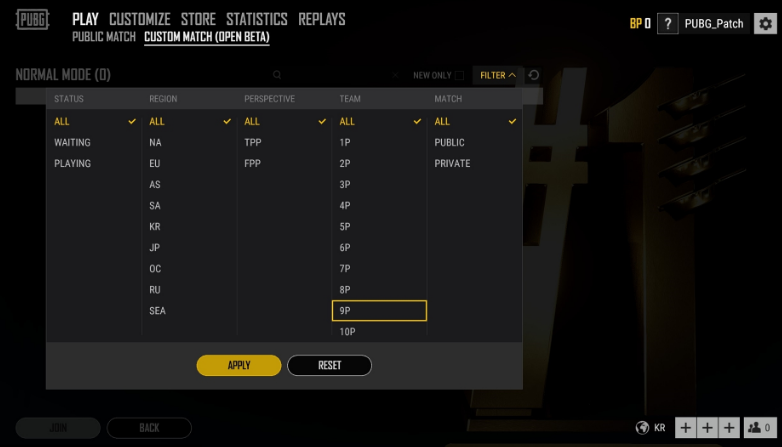
Method 3. Check Your Connection Before Switching Regions
If you want to change servers because PUBG has high ping, first check your network connection. A distant server generally increases latency, so changing regions may actually make gameplay less responsive.
How to Change Server & Reduce PUBG Lag with Smart Game Booster
Not every PUBG performance problem comes from the server. Low FPS, background programs, high CPU usage, limited RAM, and unnecessary Windows processes can cause stuttering that feels like network lag. If you want to learn how to change server on PUBG while improving overall gaming performance, Smart Game Booster is another option to consider.
Its network acceleration feature can help you connect through a more suitable game server or optimized network route, while its PC optimization tools free system resources to reduce FPS drops and stuttering.
Key Features of Smart Game Booster
- Enjoy lag-free & low-ping gaming
- 100+ games supported
- Severs from all over the world
- Boost in-game FPS
Smart Game Booster provides several gaming-focused features relevant to PUBG:
PUBG Server Selection: Provides server-related options through its network acceleration feature, helping you connect through a more suitable server or route when supported.
Network Acceleration: Optimizes the connection route between your PC and PUBG servers to reduce unnecessary delays and improve network responsiveness. Combined with FPS booster features, it can help improve both connection stability and overall gameplay smoothness.
Lower PUBG Ping: This ping reducer elps optimize network routes to reduce latency, which can be useful when your current PUBG connection produces unusually high ping.
Stable Server Connection: Targets unstable network conditions that can contribute to ping spikes, packet loss, delayed actions, and rubber-banding during PUBG matches.
Optimized Network Routing: Selects a more efficient connection route to the PUBG server instead of relying solely on the default network path provided by your ISP.
Server and PC Optimization: Combines network acceleration with gaming-focused PC optimization to address both server connection issues and system-side performance problems. Similar to a free lag reducer for Roblox, it can reduce unnecessary resource usage that contributes to stuttering or lag.
Here’s how to change the server in PUBG with Smart Game Booster
Step 1. Download and install Smart Game Booster on your Windows PC.
Step 2. Add PUBG to the Smart Game Booster game library if it is not detected automatically.
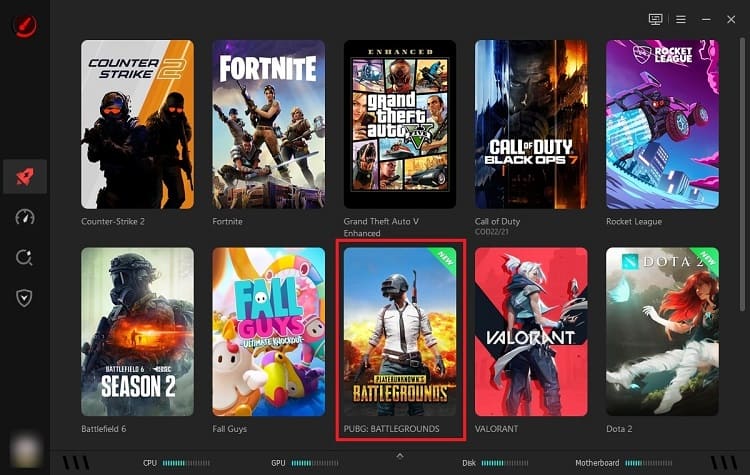
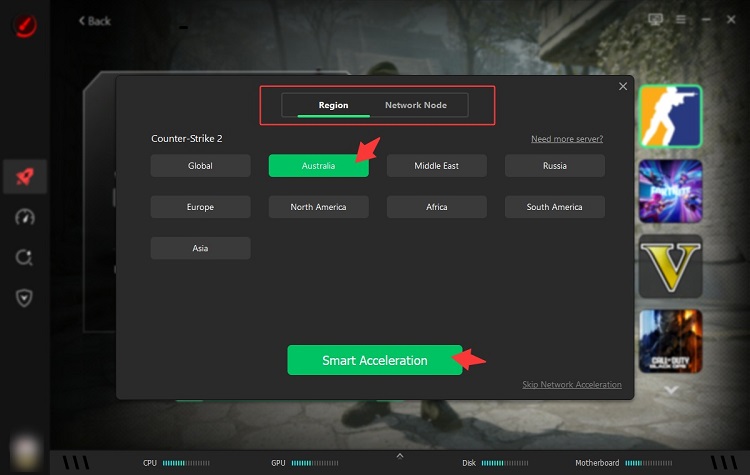
Step 3. Choose the PUBG server region and network node you want to use, then enable Smart Acceleration. Select a suitable PC Boost mode and click Accelerate Now to apply the optimizations.
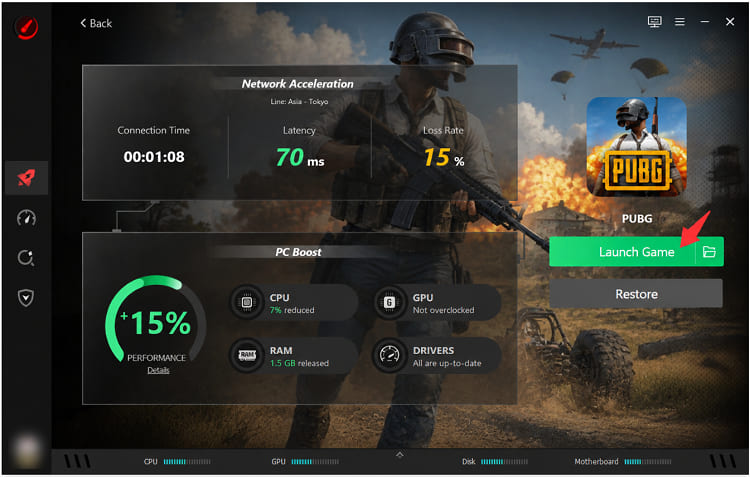
Step 4. Once acceleration is complete, review the displayed performance and network improvements. Click Launch Game to start PUBG with the selected server routing and optimized settings.
How to Change Server in PUBG Mobile
The process for how to change server in PUBG mobile differs from the PC edition. Server and region options can also change as PUBG Mobile receives updates. The safest approach is to check the matchmaking and account options currently provided by your version rather than relying on an outdated menu location.
Step 1. Launch PUBG Mobile
Open PUBG Mobile on your Android or iOS device and wait for the main lobby to load.
Step 2. Open the Matchmaking or Settings Interface
Navigate to the area where your current mode, matchmaking settings, or account-related region options are displayed.
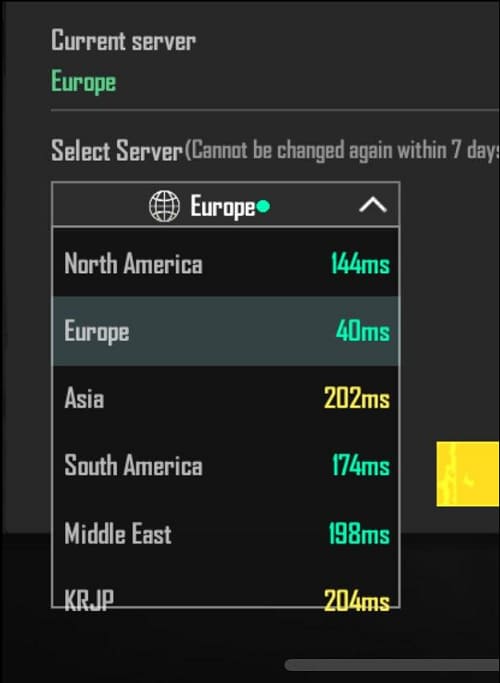
Step 3. Look for an Available Server or Region Setting
Check whether PUBG Mobile currently displays a Server, Region, or similar option for your account.
Step 4. Compare Available Regions
If multiple choices are available, compare their network conditions or displayed latency. Avoid choosing a distant region simply to change matchmaking.
Step 5. Select and Confirm the Region
Choose the most appropriate available region and confirm your selection if the game allows it. Be aware that PUBG Mobile may place restrictions on how or when account regions or servers can be changed.
This is the most direct approach to how to change server region PUBG on mobile when the relevant selection feature is available.
How to Lower PUBG Ping Without Changing Servers
If PUBG already connects you to an appropriate nearby region, changing servers may actually make your connection worse. Players looking up how to change server on PUBG because of lag should therefore check their home network first. Improving connection stability can often provide better results than trying to force matchmaking into another region.
Try these PUBG network optimizations:
Use Ethernet: Connect your PC directly to the router instead of relying on unstable Wi-Fi.
Pause Downloads: Stop Steam downloads, Windows updates, cloud synchronization, and other bandwidth-heavy tasks.
Restart the Router: Refreshing the connection can resolve temporary network problems.
Improve Wi-Fi Signal: Move closer to your router or use a suitable 5 GHz/6 GHz connection when supported.
Close Streaming Apps: Stop high-bandwidth video or streaming services during PUBG matches.
Test PUBG again after making these changes. If your FPS is smooth but movement, hit registration, or interactions remain delayed, network latency is more likely to be the cause.
FAQ About Changing PUBG Servers
Can I manually change the PUBG PC server?
PUBG: BATTLEGROUNDS may automatically determine your matchmaking region rather than provide an unrestricted manual server selector. Check the current game settings and matchmaking interface because available options can change.
Does changing PUBG servers fix high ping?
Not necessarily. If you move to a more distant server, your ping may increase. First test your network, close bandwidth-heavy programs, and use the closest appropriate region.
Is high ping the same as low FPS in PUBG?
No. High ping is a network issue that can cause delayed actions, rubber-banding, or connection problems. Low FPS is a PC performance issue that makes gameplay visually choppy or stuttery.
Conclusion
Knowing how to change server in PUBG starts with identifying whether your platform actually provides manual region selection. PUBG PC may assign matchmaking regions automatically, while PUBG Mobile's available server or region options depend on the current game version and account. After reading the above methods to change server in PUBG, don't forget to use Smart Game Booster to reduce network latency and boost PC performance, ensuring a great gaming experience.
Key Features of Smart Game Booster
- Enjoy lag-free & low-ping gaming
- 100+ games supported
- Severs from all over the world
- Boost in-game FPS