Have you ever wanted to play with friends who live in another country on Battle.net or find a smoother route for cross-region play? If so, you might want to learn how to change region on Battle net. The answer depends on what you want to change: your game's play region, your account's country setting, or the network route used to conect to game servers.
In this guide, we will introduce 3 methods to manage your region settings. You can learn how to change region on Battle net, change your account country with its self-service, and optimize your network route for cross-region gaming. Let's explore each method and find the right solution for your situation.
What Does “Region” Mean on Battle.net?
Before diving into how to change region in Battle net, let’s figure out what game regions, account country settings, and network routes mean.
Game Region or Server Region
Some Blizzard games let you connect to servers outside your home region. Available regions often include Americas, Europe, and Asia. But the specific options also depend on the specific game, and we will cover how to change region on Battle net app later.
Battle.net Account Country or Region
Your account country reflects your region of residence, which can affect payment methods, shop currency, and access to certain regional services. If you have moved to another country or registered your account with the wrong location, you can also learn how to change region on Battle net using the official service.
Gaming Region and Network Route
The actual network path your connection takes can also be considered a “region.” For instance, Smart Game Booster lets you choose different routes or nodes, which helps improve stability and reduce lag when you play on distant servers.
Why Change Your Region on Battle.net?
There might be various reasons. For example, you might want to join friends in another country, try a different server population, access region-specific events, or improve your connection quality after moving. Sometimes, you might just want to update the account country to make payment methods and shop options match your new location.
Regardless of the reason, you will need to apply the right method. The following parts will teach you how to change region on Battle net and play with optimized gaming routes step by step. Just keep reading.
How to Change Region on Battle.net Within the Program?
The easiest way to change your Battle.net region is through the desktop app’s login screen. Here’s how to change region on Battle net within the app.
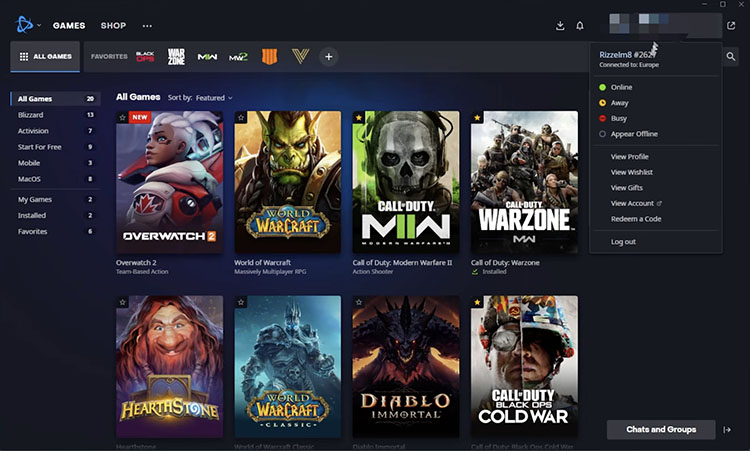
Step 1. Launch the Battle.net desktop app on your computer. Click your profile picture in the top-right corner and select Log Out.
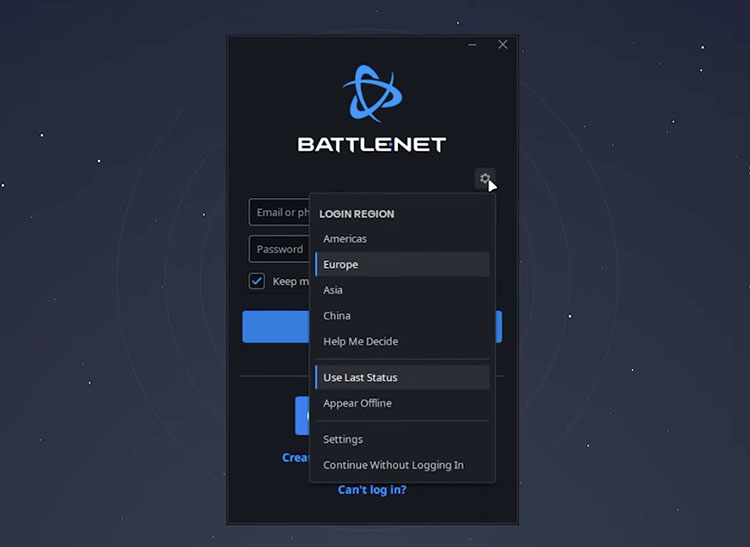
Step 2. On the login screen, look for the gear in the upper-right corner of the login window.
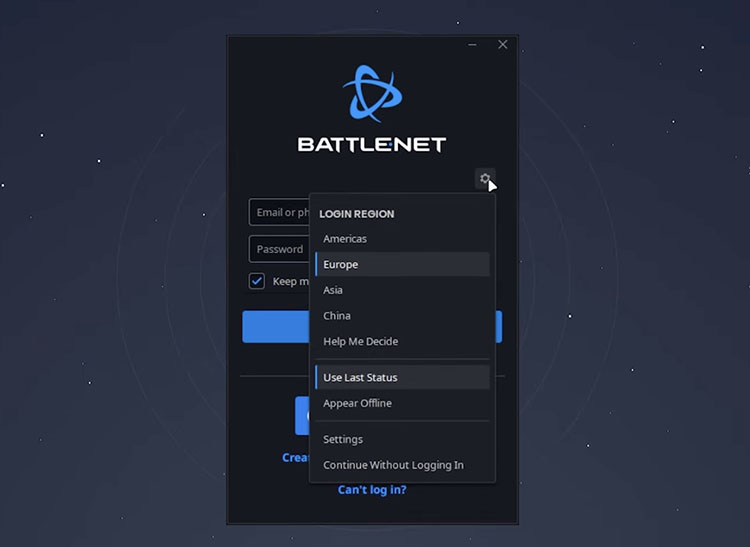
Step 3. Click it and select Your Preferred Region. A list of available regions will appear (Americas, Europe, Asia, etc.). Click the region you want to use.
That’s how to change server in Battle net with the app easily. Another way to change country region Battle net is using Global Play. After logging in, select your game from the left sidebar and use the game options menu or Play button to switch regions.
Please note that the interface can vary slightly between games, and only titles that support Global Play allow free server location changes. Meanwhile, region-specific game progress, friends lists, purchases, or items do not transfer between regions.
Change Gaming Region and Route with Network Acceleration by Smart Game Booster
Now you know how to change country region Battle net. However, you might still experience high latency while playing on foreign servers. In this case, network acceleration can be another option worth trying. If you want to connect to a different gaming region, play with friends overseas, or optimize your network route, Smart Game Booster is one great solution that offers network acceleration features for cross-region gaming.
Key Features of Smart Game Booster
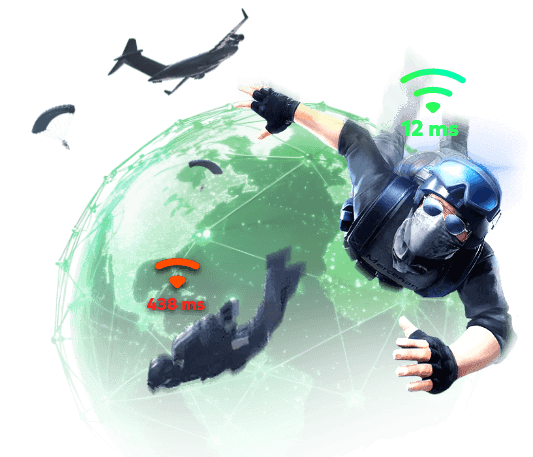
- Enjoy lag-free & low-ping gaming
- 100+ games supported
- Severs from all over the world
- Boost in-game FPS
The software currently advertises 500+ global gaming servers/routes, automatic route selection, and manual region/route switching. Let’s see how to change Battle net server region with it in simple steps.
How to change region and boost connection with Smart Game Booster:
Step 1. Free download and install the Smart Game Booster on your Windows PC.
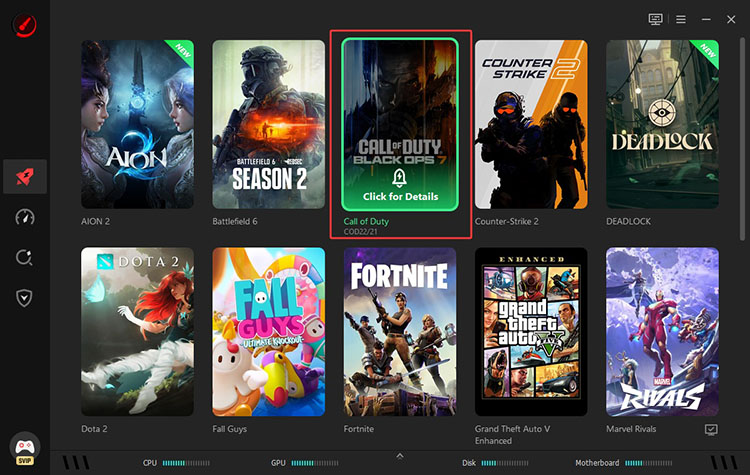
Step 2. From the main interface, select Call of Duty to see more details of the game.
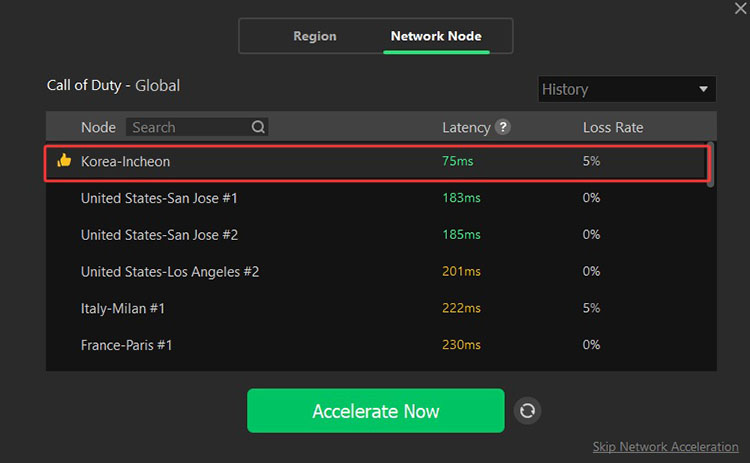
Step 3. Enable Network Acceleration and select a preferred region in the Network Node options.
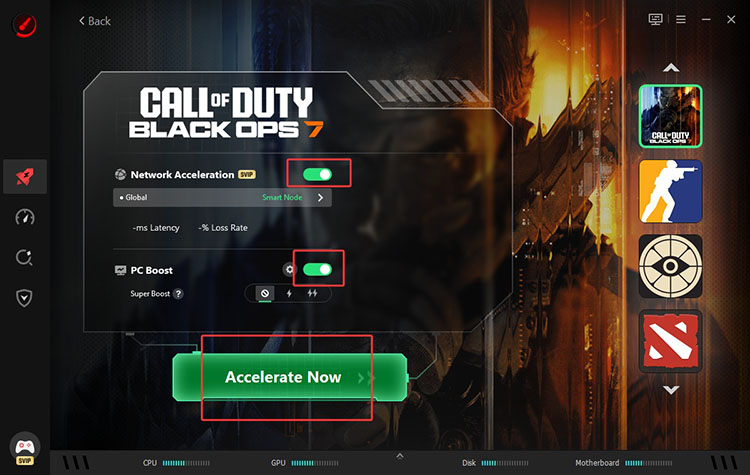
Step 4. Enable the PC Boost option as well. Click on Accelerate Now to proceed.
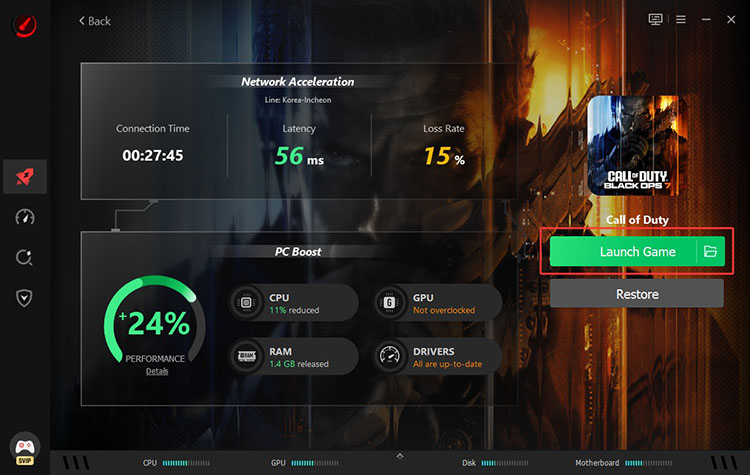
Step 5. Smart Game Booster will then launch your game with optimized settings.
That’s it. Smart Game Booster also supports all mainstream games, which can be used as a helpful PUBG lag fix. If you are not sure whether your computer can run a particular game, it also offers a Can I Run It tool to help you check your PC's compatibility with its system requirements.
Why Use Smart Game Booster for Cross-Region Gaming?
Manual region and route switching
You can manually choose from available gaming regions and network routes to better match your destination server. This gives you more freedom when the default route delivers inconsistent performance.
500+ global gaming routes
Smart Game Booster offers more than 500 global servers and routes, offering a range of connection options for supported games. It’s also the best way to reduce ping in Fortnite if you are a fan of the game.
Cross-region gaming acceleration
Designed with specialized network infrastructure, the software can bypass congested public internet routing. This helps reduce the impact of poor ISP routing and makes cross-region gaming much smoother.
Background resource optimization
The software can also close unnecessary background processes and free up CPU and GPU resources while accelerating your network. It’s a solid FPS booster that can help you react faster in competitive matches.
Lower latency and packet loss
This ping reducer helps optimize network routes and system resources, potentially reducing lag spikes and packet loss for a more consistent cross-region gaming experience.
How to Change Country/Region on Battle.net
If you have moved to a new country or created an account with the wrong residence setting, you need to change the account country rather than just the game server. Blizzard offers a self-service option for Country/Region modification. Let’s see how to change your location on Battle net.
Steps on how to change account country on Battle.net:
Step 1. Search for Blizzard Support on Google. Log in to your account.
In the “What can we help you with” section, select the Account option.
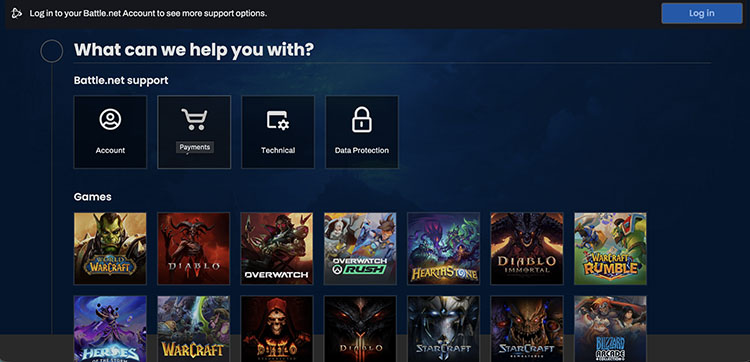
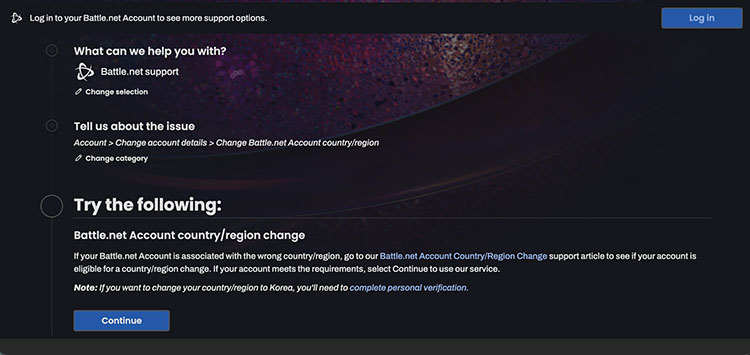
Step 2. Click on "I would rather categorize the issue” at the bottom. Then choose Account > Change Account Details > Change Battle.net Account country/region.
Step 3. Then click the button below “Try the following...” to proceed.
Step 4. Follow the on-screen instructions to submit a ticket to change your account region.
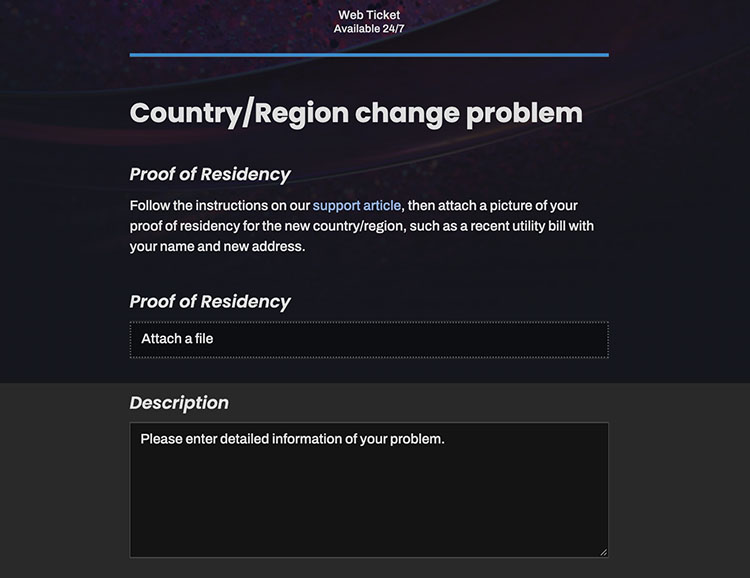
That’s how to change region on Battle net with the self-service option. In addition, there are a few restrictions you need to know:
Your Battle.net Balance must be low enough to qualify; Blizzard will not convert currency between regions.
Accounts created outside China can not be changed to China. Korea has extra requirements, including phone verification and restrictions on Nexon-linked accounts.
Switching the account country does not move game progress or characters between play regions.
Final Words
How to change region on Battle net? It depends on whether you need a game server switch, an account country update, or a better network route. Luckily, this guide covers 3 useful methods to help you handle these situations. For players who want more control over latency and stability during cross-region sessions, Smart Game Booster provides an effective solution with its route selection and performance boost tools. Try it and experience smoother connections the next time you play!