Why is Black Ops 6 so laggy? It ruins an intense match! You’re lining up a crucial headshot, executing an omnimovement slide around a corner, or engaging in a close-quarters firefight, only for the game to freeze, rubberband, or register your shots seconds too late. In a fast-paced multiplayer shooter where split-second reaction times make all the difference, persistent latency, packet loss, and frame drops can completely destroy the experience.
Whether you're dealing with high ping, sudden frame rate drops, or micro-stuttering during intense multiplayer matches, Black Ops 6 network lag usually boils down to a few common culprits. Below, we'll break down why these performance drops happen and share the most effective, hassle-free solutions to get your game running smoothly and responsively.
Why is Black Ops 6 So Laggy on PC?
Before diving into how to fix Black Ops 6 lag, it helps to understand what is actually happening when your game stutters or lags during online gameplay:
High Ping (Network Latency): The time (measured in milliseconds) it takes for data to travel from your gaming system to the Activision servers and back. High ping causes rubberbanding, delayed hit registration, and player models teleporting across your screen.
Background Process Overload: Unnecessary background applications (such as cloud syncing services, heavy browser tabs, Discord screen shares, or automatic software updates) consume valuable RAM and CPU cycles, leaving less performance capacity for the game engine.
Outdated Graphics Drivers: GPU drivers optimized for older titles often struggle with newer DirectX 12 pipelines and texture streaming demands used in modern engines like Call of Duty's updated HQ framework.
Thermal Throttling & Power Constraints: When your GPU or CPU temperature reaches safe limits, Windows or your hardware firmware automatically throttles clock speeds to prevent overheating, causing sudden frame rate dips mid-match.
5 Quick Fixes for Why is BO6 So Laggy
Combining system optimization tools like Smart Game Booster with network hygiene best practices ensures the lowest possible ping during competitive online matches.
1. Switch from Wi-Fi to an Ethernet Connection
Wi-Fi signals are inherently vulnerable to interference from physical walls, household electronics, and other connected devices. Even if your Wi-Fi internet speed test looks fast, wireless signal jitter causes packet loss—leading directly to noticeable hit-registration lag in Black Ops 6.
Plugging directly into your router using a Cat6 or Cat7 Ethernet cable eliminates radio frequency interference, stabilizes your ping, and stops sudden packet loss bursts.
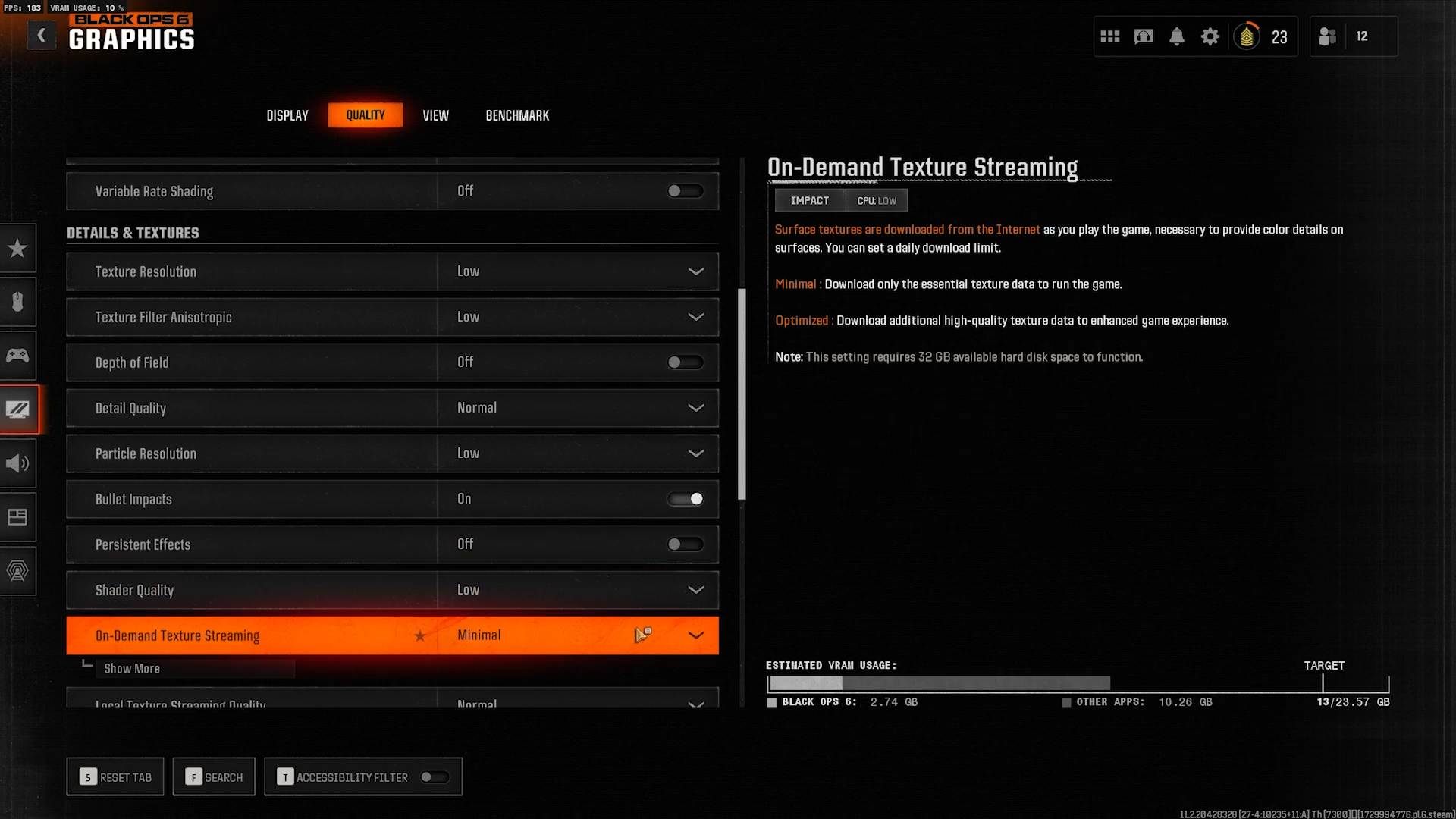
2. Disable On-Demand Texture Streaming
Black Ops 6 uses on-demand texture streaming to download high-resolution assets directly from cloud servers while you play. If your internet bandwidth is throttled or fluctuating, this constant background downloading leads to severe micro-stuttering and sudden network spikes.
Open Black Ops 6 and go to Settings.
Navigate to the Graphics tab and select Quality.
Scroll down to On-Demand Texture Streaming.
Set it to Off or select Allocated Texture Cache Limit to Minimised to cap the background bandwidth usage.
3. Clear Shader Cache & Update Graphics Drivers
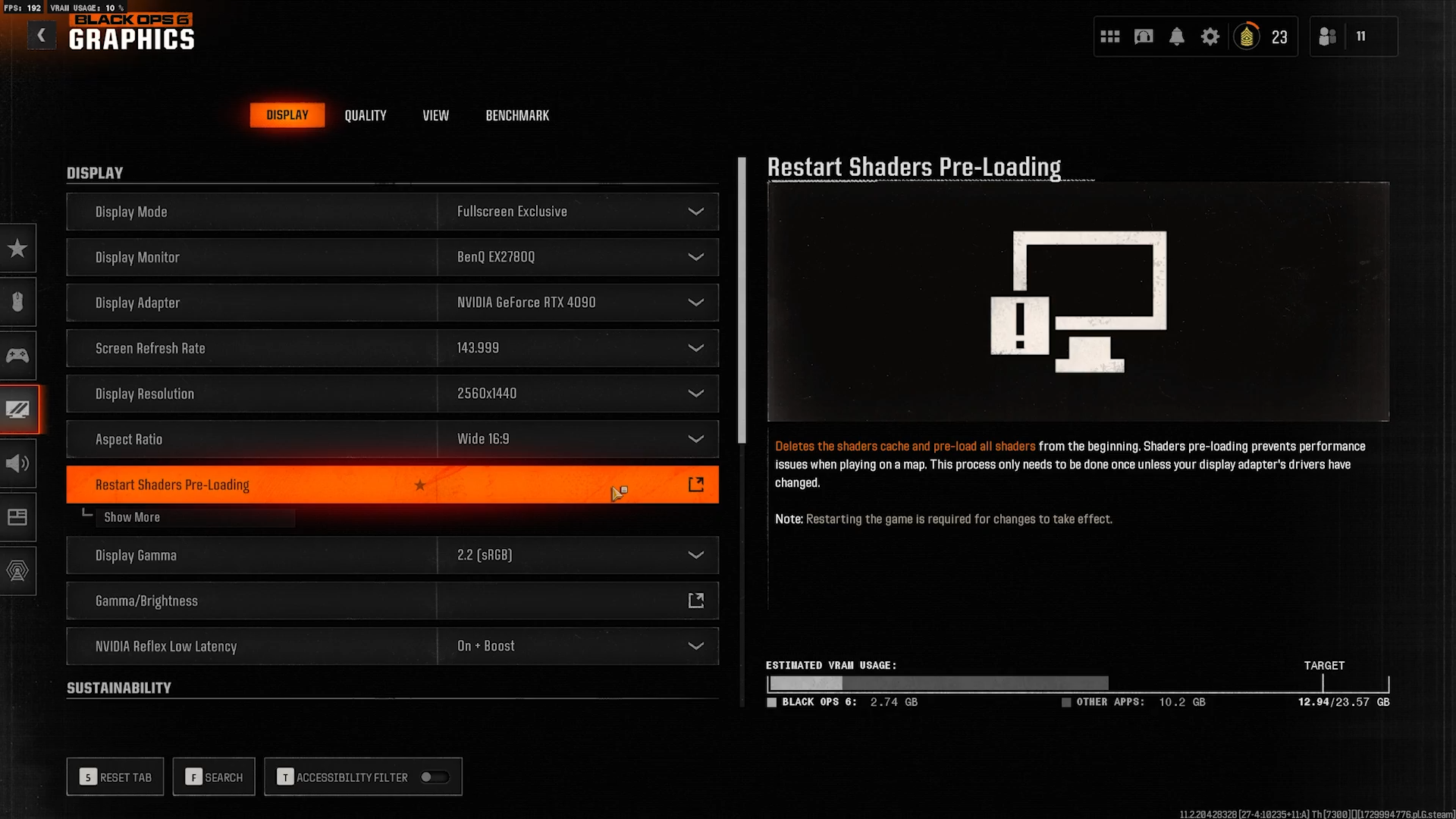
Corrupted shader caches or outdated GPU drivers cause substantial frame drops and severe stuttering whenever new visual effects appear on screen. Updating your drivers ensures full compatibility with the latest patches.
NVIDIA Users: Open NVIDIA App / GeForce Experience, go to the Drivers tab, and click Check for updates.
AMD Users: Open AMD Software: Adrenalin Edition, check for driver updates under the Home or System tab.
In-Game Shader Pre-caching: After updating your drivers, launch Black Ops 6, go to Settings > Graphics > Display, scroll down to the bottom, and select Restart Shader Optimization. Let the shader compilation finish 100% before jumping into a match.
4. Close Bandwidth and CPU-Heavy Background Apps
Background tasks silently sap system resources and consume network upload/download pipelines, leaving less bandwidth for tick-rate stability.
Press Ctrl + Shift + Esc to open Task Manager on PC.
Under the Processes tab, click the Network and CPU column headers to sort by resource usage.
Select non-essential background programs (like OneDrive, Google Drive, Torrent clients, or web browsers with multiple streaming tabs).
Click End Task before launching Call of Duty.
5. Change DNS Servers to Optimize Routing
Your Internet Service Provider’s default DNS server may not always route your network traffic efficiently to Activision’s matchmaking servers. Switching to a fast, public DNS service can improve domain lookup times and stabilize connectivity.
How to set Cloudflare DNS on Windows:
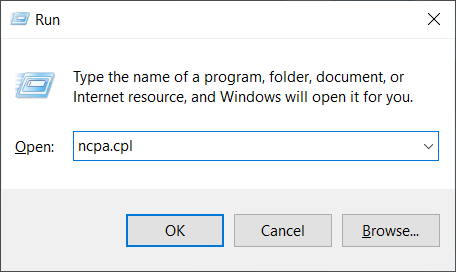
1. Press Win + R, type ncpa.cpl, and press Enter.
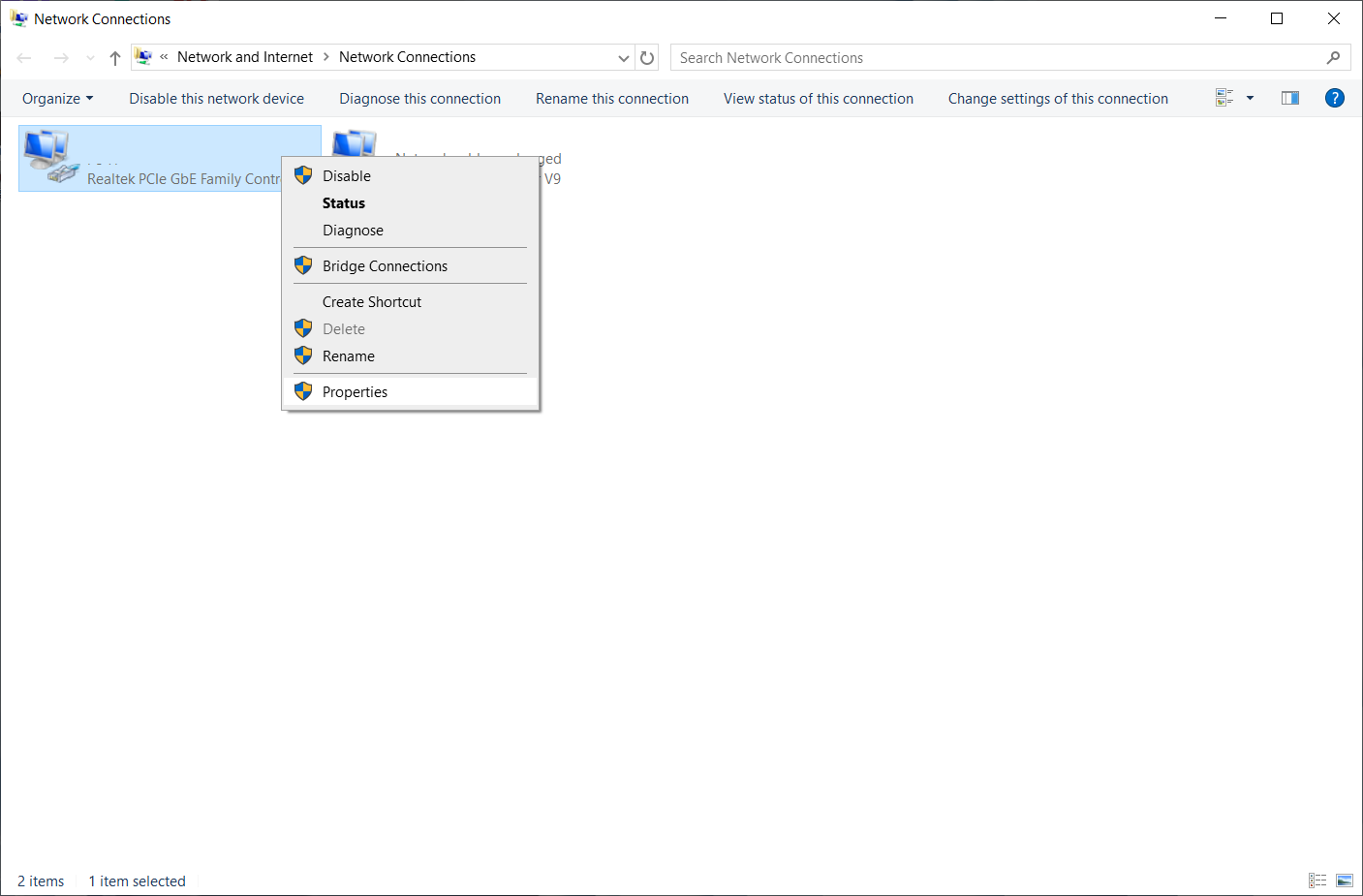
2. Right-click your active network connection (Ethernet or Wi-Fi) and select Properties.
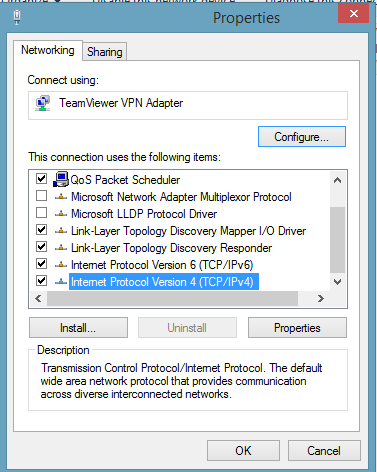
3. Double-click Internet Protocol Version 4 (TCP/IPv4).
4. Select Use the following DNS server addresses:
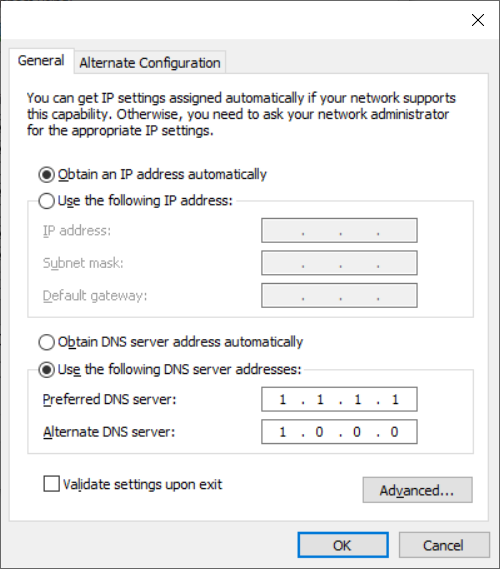
5. Click OK to apply changes. (Alternatively, Google Public DNS uses 8.8.8.8 and 8.8.4.4).
How Smart Game Booster Fixes Black Ops 6 Lag
While manual troubleshooting works, configuring system settings, managing background processes, and tweaking network configurations manually can be time-consuming. An all-in-one optimization utility like Smart Game Booster simplifies this process by automating both hardware and network optimizations with a single click.
Here is how Smart Game Booster targets the root causes of Black Ops 6 lag:
One-Click RAM & CPU Boost: As a FPS booster, this tool automatically detects non-essential background processes, services, and memory hogs, temporarily suspending them when you launch Black Ops 6. This frees up system memory and maximizes CPU core allocation specifically for the game engine.
Integrated Ping Reducer: This ping reducer optimizes system network configurations and DNS routes to ensure a faster, more stable connection to gaming servers, helping to reduce ping spikes and packet loss during online matches.
Safe GPU Overclocking: To combat frame drops and thermal throttling, Smart Game Booster includes an easy-to-use overclocking tool that safely increases GPU performance without risking system instability or overheating.
Real-Time Hardware Temperature Monitoring: Keep track of your CPU and GPU usage alongside real-time thermal metrics in-game, allowing you to catch overheating issues before they trigger thermal throttling and FPS dips.
Check the steps of using Smart Game Booster to fix Why is BO6 so laggy here:
Step 1. Download Smart Game Booster and install it.
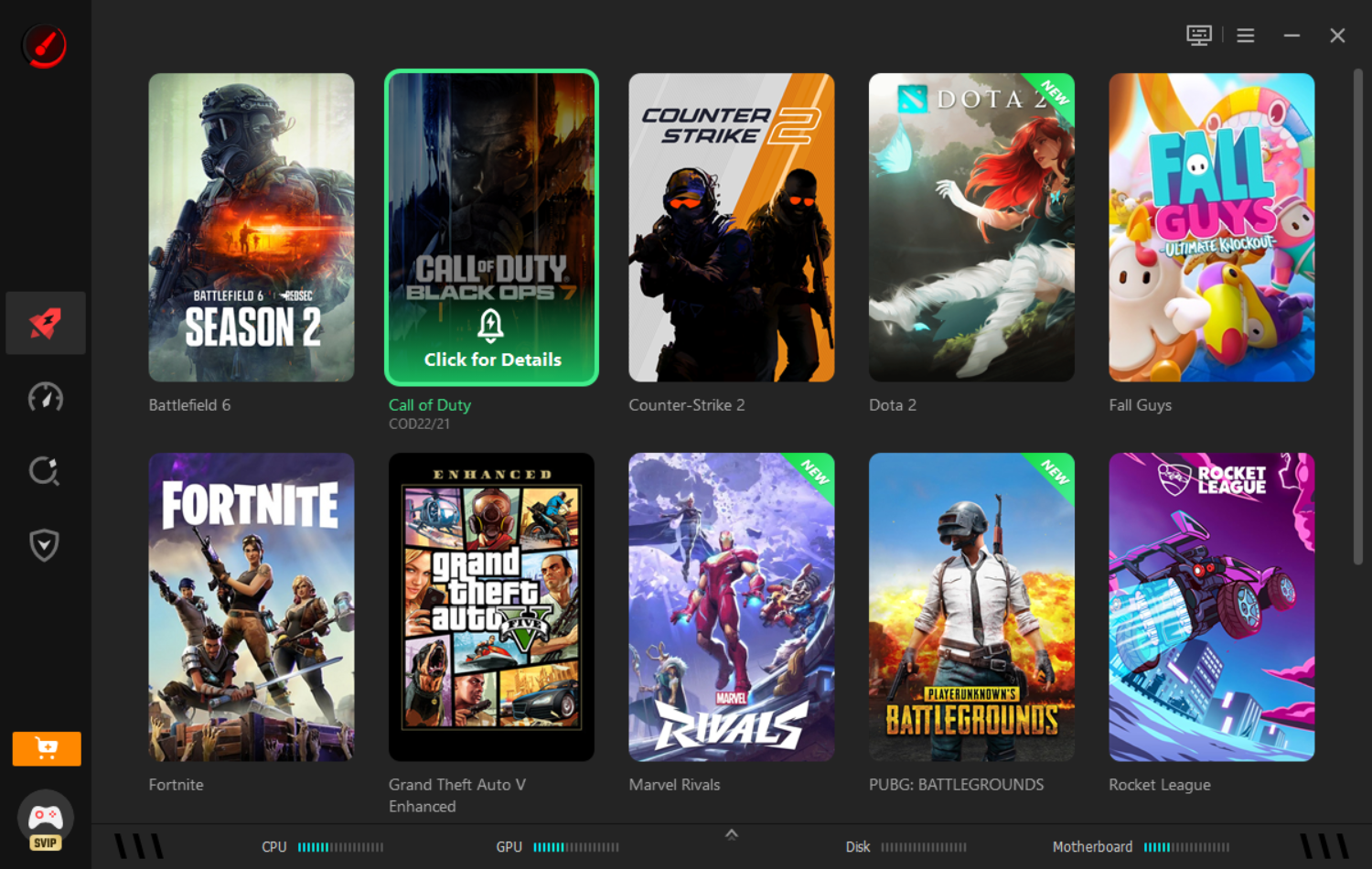
Step 2. Launch this free tool and select Call of Duty to boost.
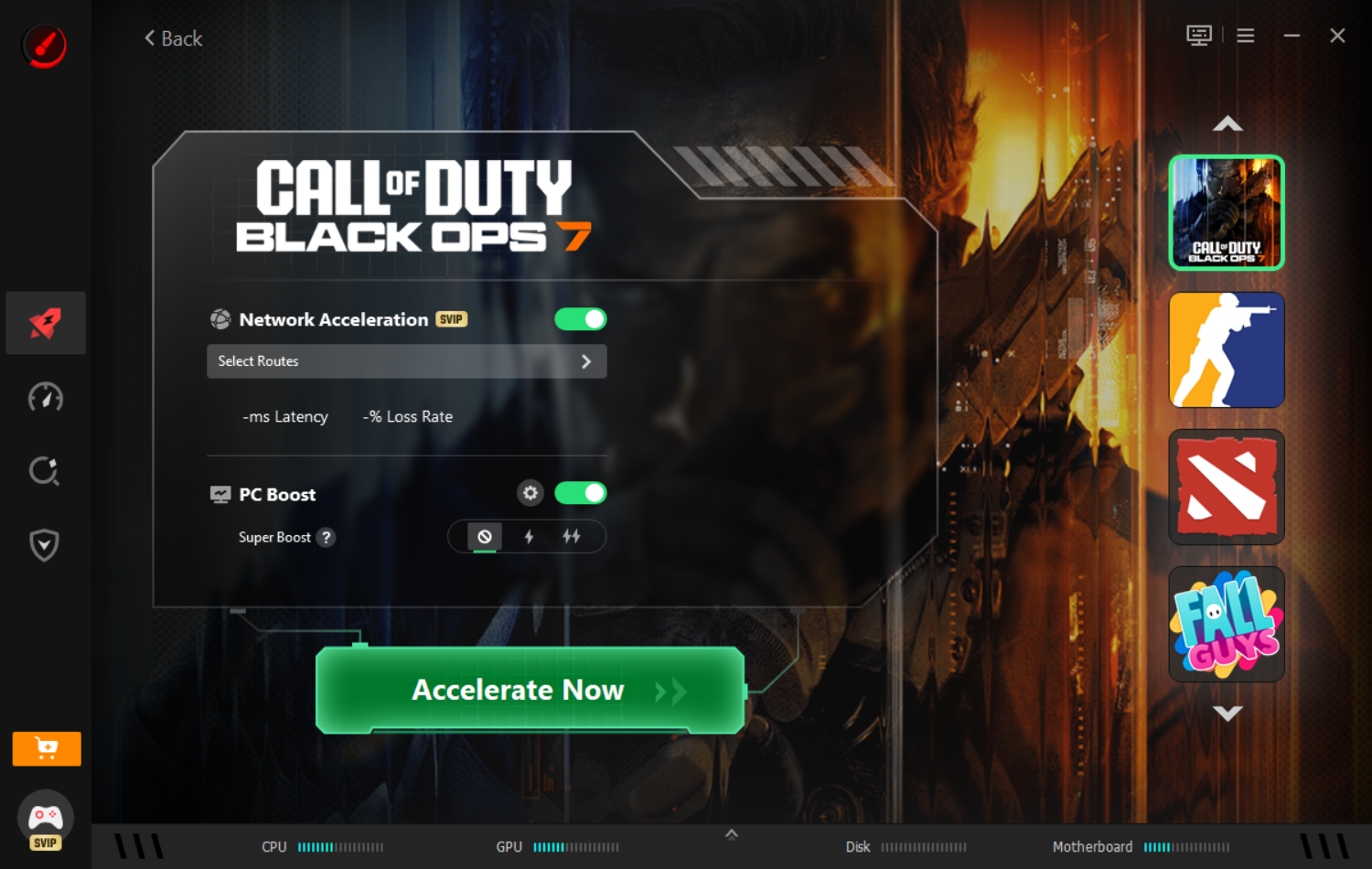
Step 3. Click Accelerate Now.
The Bottom Line
About why is Black Ops 6 so laggy has been presented above. By applying essential network hygiene—such as switching to a wired Ethernet connection, adjusting in-game settings like On-Demand Texture Streaming, and updating your graphics drivers—you can eliminate many common causes of latency and micro-stuttering.
For an effortless, comprehensive solution, Smart Game Booster streamlines system optimization into a single click. Download Smart Game Booster today to reclaim your competitive edge and enjoy a smooth, lag-free gameplay experience.
Key Features of Smart Game Booster
- Enjoy lag-free & low-ping gaming
- 100+ games supported
- Severs from all over the world
- Boost in-game FPS