You may have encountered the alert that “Display driver failed to start. Display driver failed to start; using Microsoft Basic Display Driver instead. Check Windows Update for a newer display driver” on Windows at times. The error message shows when you have installed the graphics driver for your onboard or graphics card that failed to start normally.
This error message can be shown on Windows just once or it may also appear frequently after installing the graphics driver. If this is the case, you may need to try some solutions to fix the display driver failed to start issue for better use.
Solution 1. Update the Display Driver
On Windows 10, you can update the display driver on device manager.
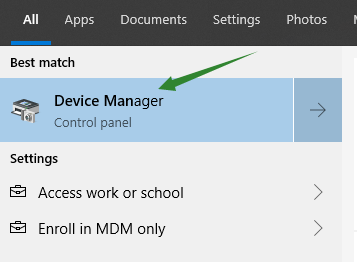
Step 1. Click the start button and type device manager, choose it in the result list;
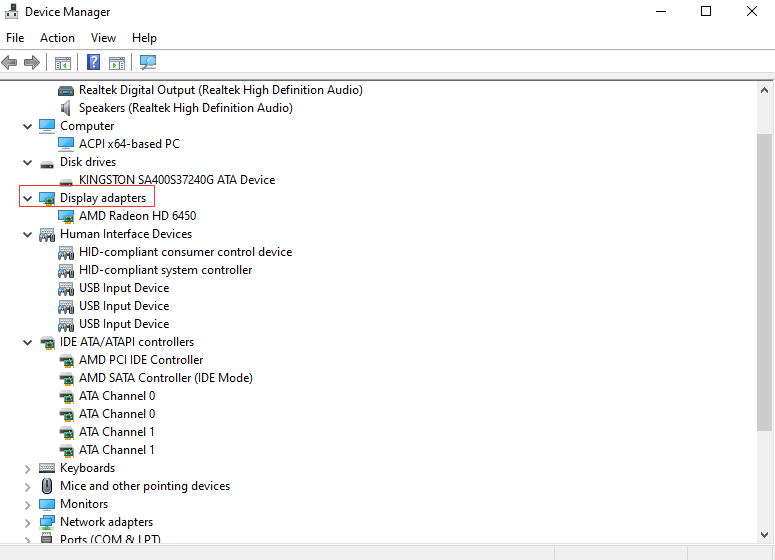
Step 2. Unfold the display adapter and choose the graphics driver;
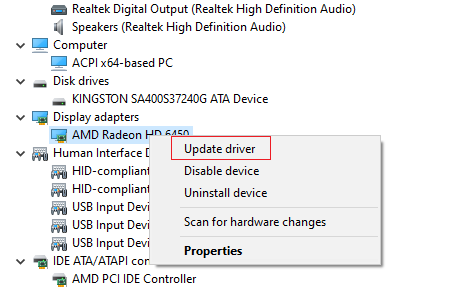
Step 3. Right click the driver and choose update driver;
Step 4. Search automatically for updated driver software;
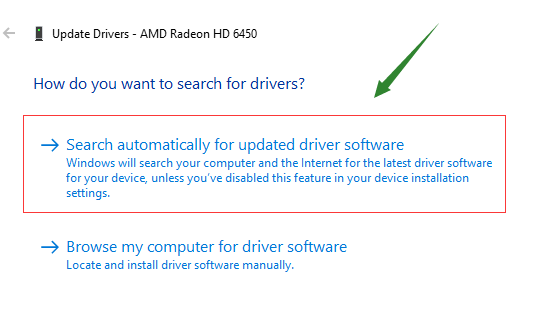
Waiting for the update result and restart your computer.
This is the manual way to update your display driver, you can also use a driver updater to help get the latest graphics driver easily.
Smart Game Booster
Smart Game Booster is a game optimization utility for helping increase FPS, boost game speed and update outdated graphics drivers. It will check your driver status in just one click and help you update all outdated drivers easily.
Step 1. Free download Smart Game Booster and run it;
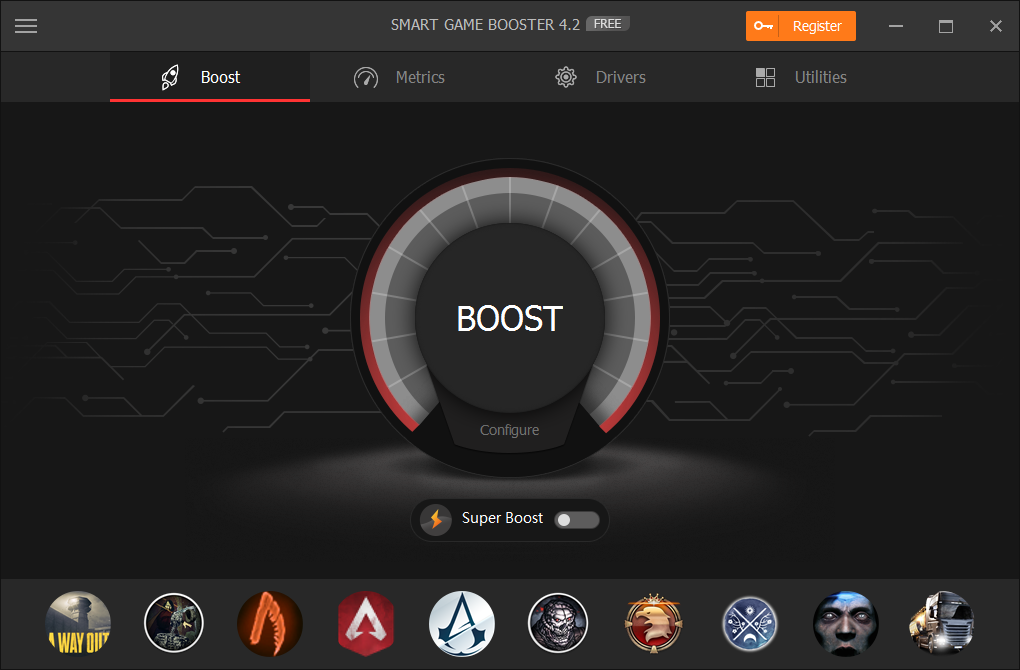
Step 2. Locate at drivers and check for updates;
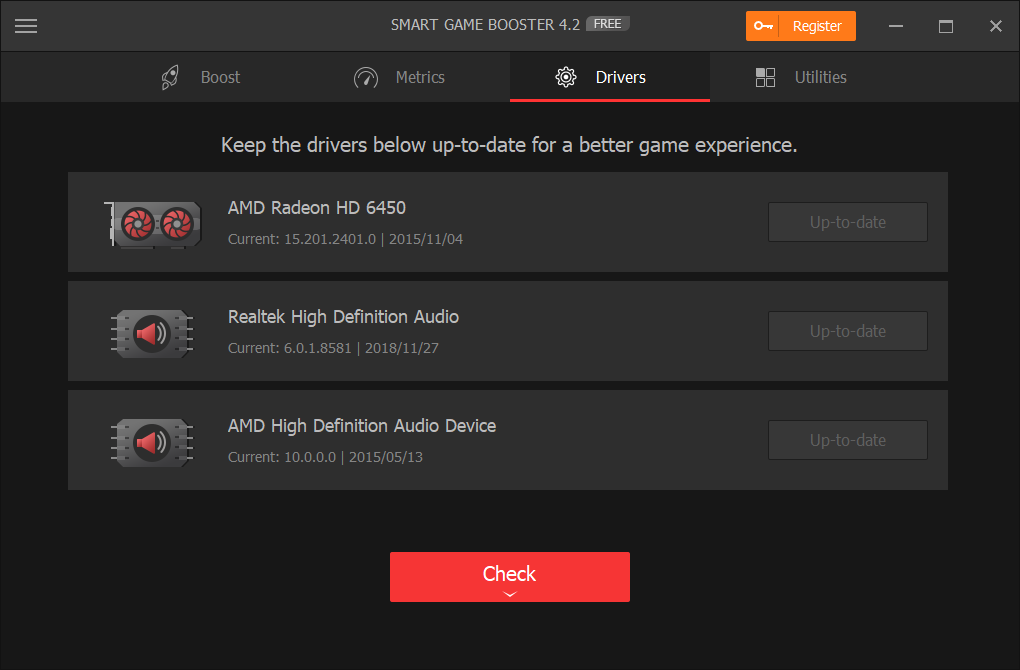
Step 3. Update all outdated drivers to fix the display driver failed to start issue.
Driver Booster
Driver Booster is a driver updater that aims at updating the outdated drivers and game components, also fixing common Windows issues. To solve the display driver failed to start issue, you can use Driver Booster to check for driver updates.
Step 1. Free download Driver Booster and run it;
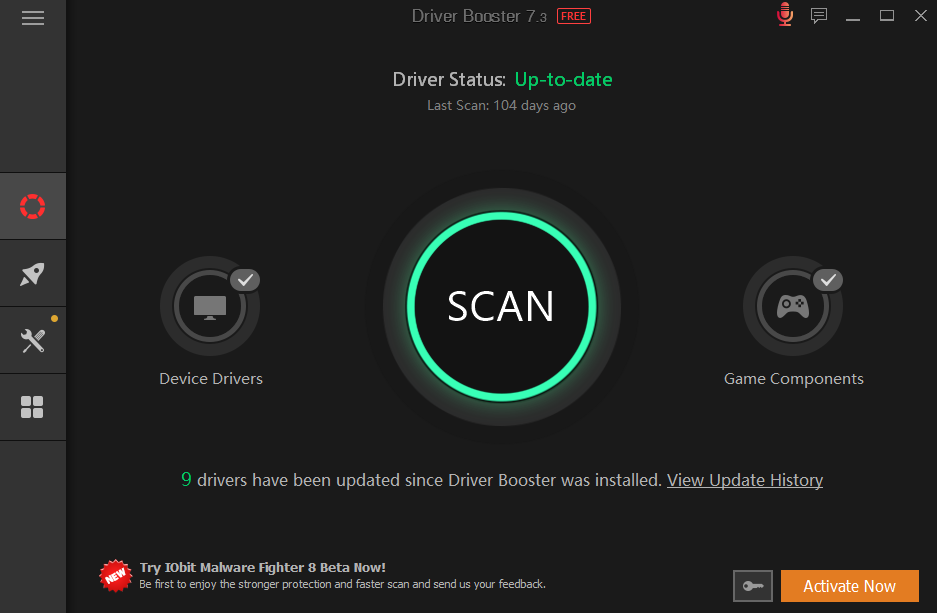
Step 2. Click scan and wait for the test result;
Step 3. Update all outdated drivers in one click.
Solution 2. Roll Back Display Driver Update
In device manager, you can also roll back display driver update for solving the display driver failed to start issue. Follow the steps below.
Step 1. Click the start button and type device manager, choose it in the result list;
Step 2. Unfold the display adapter and choose the graphics driver;
Step 3. Right click and choose properties;
Step 4. Click roll back driver and hit ok.
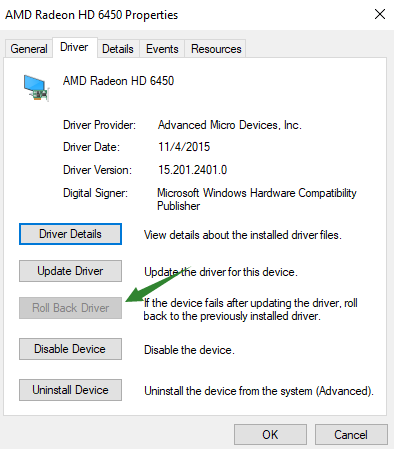
After that, it will begin to roll back your graphics driver to the previous version. Restart your computer when the process is done, and then check if the display driver failed to start issue remains. If it doesn’t help, keep trying the next solution.
Solution 3. Reinstall the Display Driver
If the 2 methods make no sense to fix the display driver failed to start issue, you may need to reinstall your display driver for better use. Still in device manager, you can get access to uninstall the graphics driver. Then you need to go to the manufacturer’s website to download and install it.
Step 1. Click the start button and type device manager, choose it in the result list;
Step 2. Unfold the display adapter and choose the graphics driver;
Step 3. Click uninstall and wait for the result.
When you have uninstalled the display driver on your computer, please go to the manufacturer’s website to download and install a new one. Common driver brands include Nvidia, Intel, AMD and more. If you are using one of these brands, fast visit the website below:
Nvidia driver download: https://www.nvidia.cn/Download/index.aspx?lang=en
Intel driver download: https://downloadcenter.intel.com/product/80939/Graphics-Drivers
AMD driver download: https://www.amd.com/en/support
When downloading the graphics driver online, please make sure you are choosing the one that is compatible with your graphics card. You can check your system information first and make the download online.