If you’re wondering, “Are Marvel Rivals servers down?”, you may be unable to log in, see a “Server connection failed” error, or get stuck on the loading screen. You may also experience high ping, sudden lag, matchmaking problems, or disconnections during matches. This guide shows you how to check the server status and fix connection issues when the servers are working normally.
Are Marvel Rivals Servers Down Now? Check Official News
If you cannot log in to Marvel Rivals, first check the official Marvel Rivals News page for the latest server maintenance, patch, and outage information. The developers regularly post updates there, including scheduled maintenance and server downtime.
You can also check the official Marvel Rivals Discord for the latest announcements from the development team.
Marvel Rivals News: https://www.marvelrivals.com/news
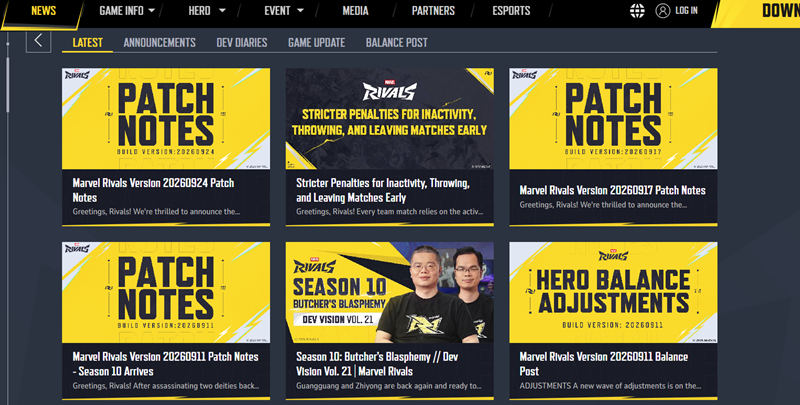
If there is an ongoing maintenance or server outage, you may need to wait until the servers are back online. In this case, changing your PC or network settings will not fix the problem.
If there is no official announcement about a server problem, continue with the following methods to check whether the issue is coming from your network or PC.
Marvel Rivals Servers Down or Your Internet's Problem? Troubleshoot
How can you tell whether the Marvel Rivals server is down or the problem is coming from your internet? You can check these signs.
Signs Marvel Rivals May Be Down
Other online games work normally.
Many players report the same problem.
Marvel Rivals officially confirms the issue.
Players in multiple regions experience the same problem.
Signs the Problem May Be on Your Side
Only your PC is affected.
Other games also disconnect.
Your internet connection is unstable.
Other devices on the same network have connection problems.
If the problem seems to be related to your network, try these methods.
Method 1. Switch from Wi-Fi to a Wired Connection
If you are using Wi-Fi, try connecting your PC to your router with an Ethernet cable. A wired connection is usually more stable and can help reduce connection drops and high ping.
If Marvel Rivals still has connection problems with a wired connection, your network driver may be the problem.
Method 2. Scan for Network Driver Issues
An outdated or malfunctioning network adapter driver can cause internet and game connection problems on your PC. You can use Smart Game Booster to quickly scan your PC for outdated drivers.
Step 1. Download and install Smart Game Booster.
Step 2. Open Smart Game Booster and run a driver scan.
Step 3. Find your network adapter driver in the scan results.
Step 4. Click Update to install the available driver update.
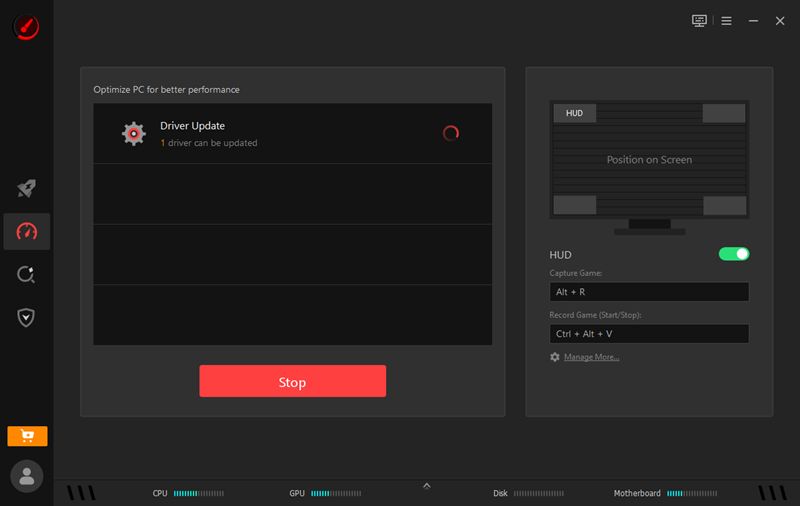
After updating the driver, restart your PC and launch Marvel Rivals again.
How to Fix Marvel Rivals Server Issues? Change Server Region
If Marvel Rivals is having connection problems in your current region, you can try another available server region. This can help you check whether the problem is related to a regional server, network routing, or your ISP.
For example, if you are experiencing high ping or connection problems on your current route, switching to another available route may provide a more stable connection.
How to Change the Marvel Rivals Server?
Step 1. Download and install Smart Game Booster.
Step 2. Find Marvel Rivals in Smart Game Booster.
Step 3. Find the Network Acceleration feature.
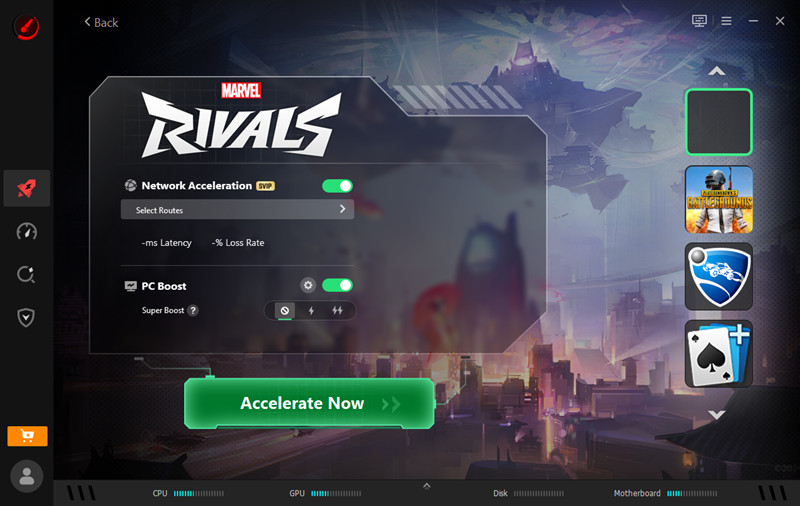
Step 4. Select another available network route for Marvel Rivals.
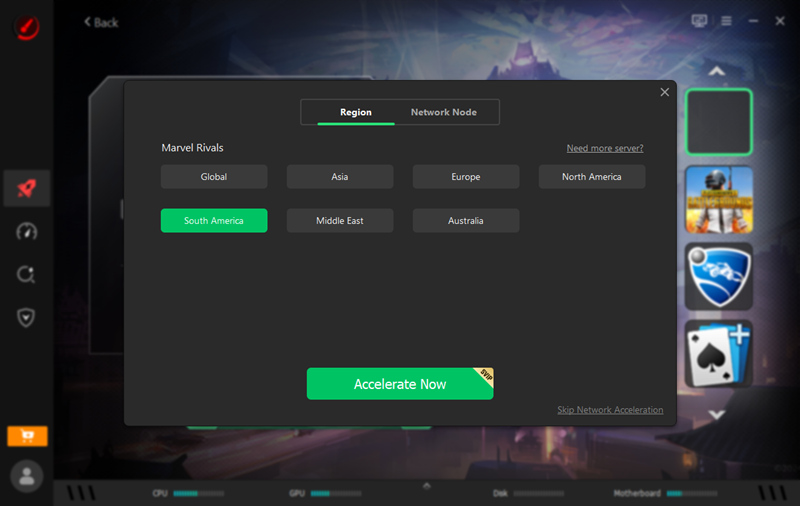
Step 5. Launch Marvel Rivals and check your connection.
If changing the route does not help, switch back to your original route and continue with the other troubleshooting methods below.
Note: Changing the server route cannot fix a confirmed Marvel Rivals server outage. If the game servers are down, you need to wait for the developers to restore the service.
Marvel Rivals Server Down? Verify Game Files
If Marvel Rivals keeps disconnecting, fails to launch, or shows connection-related errors while the servers are working normally, corrupted or missing game files may be causing the problem. If you play Marvel Rivals through Steam, you can use Steam's built-in verification tool to check the game files.
How to Verify Marvel Rivals Game Files on Steam?
Step 1. Open Steam and go to your Library.
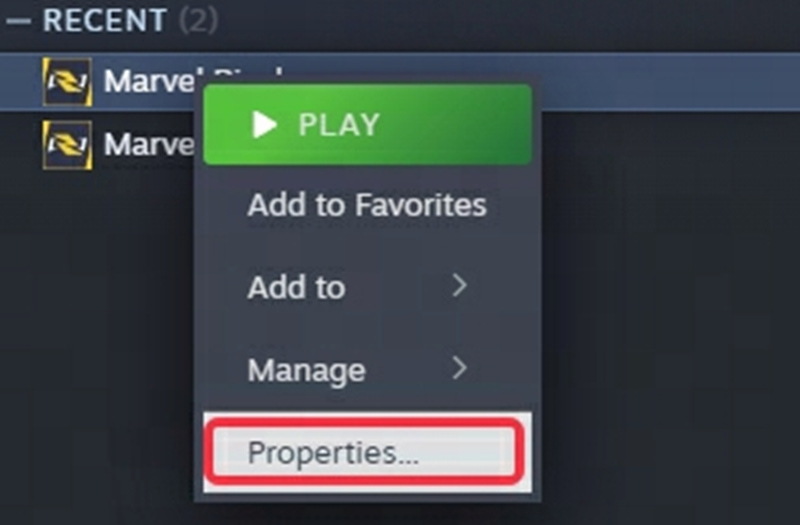
Step 2. Find Marvel Rivals, right-click it, and select Properties.
Step 3. Select Installed Files from the left-hand menu.
Step 4. Click Verify integrity of game files.
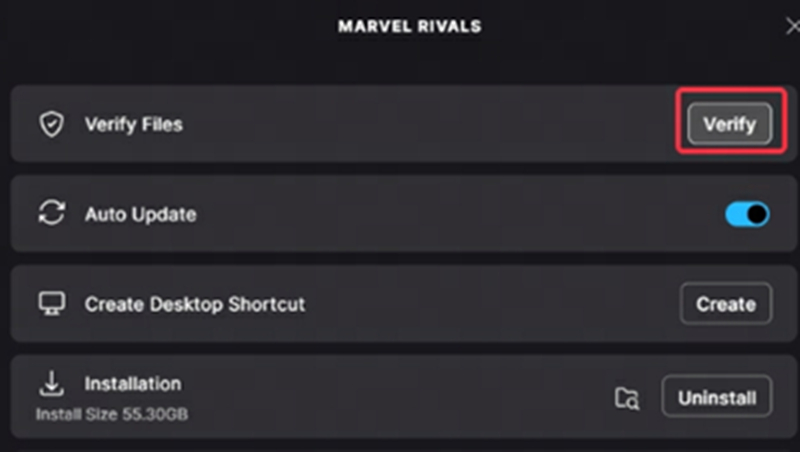
Wait for Steam to scan the game files and repair or replace any damaged files.
Step 5. When the process is complete, restart Steam and launch Marvel Rivals again.
If Steam reports that some files could not be verified, restart Steam and run the verification again.
Keep in mind that verifying game files can fix local game file problems, but it cannot fix a confirmed Marvel Rivals server outage.
Marvel Rivals Server Down? Check Steam or Epic Status
If Marvel Rivals is unavailable on your PC, the problem may also come from the platform you use to launch the game. Check the status of Steam or Epic Games to see whether either platform is experiencing an outage.
If Steam or Epic is having a service problem, you may be unable to log in, launch Marvel Rivals, or connect to online services even when Marvel Rivals itself is working normally.
### How to Check Steam Status?
Visit the Steam Status page and check whether Steam services are working normally. Pay attention to services such as Steam Community, Steam Store, and Steam Web API.
### How to Check Epic Games Status?
Visit the Epic Games Public Status page and look for incidents affecting Epic Online Services, Login, or the Epic Games Store.
If either platform reports an ongoing outage, wait for the service to recover and then try launching Marvel Rivals again.
Conclusion
When Marvel Rivals is down, first check the official server status and Steam or Epic services to find out whether the problem is on the server side. If the servers are working normally, try verifying the game files, switching to another server route, or updating your network driver.
Smart Game Booster can also help with troubleshooting through its driver fix and Network Acceleration features, allowing you to check driver issues and try different network routes when Marvel Rivals has connection problems.
Key Features of Smart Game Booster
- Enjoy lag-free & low-ping gaming
- 100+ games supported
- Severs from all over the world
- Boost in-game FPS