Important Considerations Before Changing Region on Steam
Steam Wallet conversion: Unspent wallet funds automatically convert to the new currency using real-time market exchange rates upon region change.
Region-locked titles: Certain games purchased in low-price regions may have play-locks or language restrictions when playing back home.
VPN Risks: It violates Steam’s Subscriber Agreement and can trigger account restrictions or store bans.
How to Change Region on Steam with Detailed Guide
Method 1: Update Region via Checkout
1. Connect to the internet from your new physical location.
2. Open Steam, select an item, and click Add to Cart.
3. In the top-right corner of the shopping cart, click the Country dropdown menu, and select your new country.
4. Proceed to checkout and enter a local payment card/method and billing address issued in that country to finalize the update.
Method 2: Update Region via Account Settings
1. Click your profile name in the top right and select Account Details.
2. Under Store & Purchase History, click Update Store Country.
3. Select the target country from the available list.
4. Complete the prompt by adding a local payment method.
Method 3. Update Region with VPN
Using a VPN to switch your Steam store region to lower-priced markets is common. But remember that a VPN alone will no longer change your Steam region.
While a VPN changes your virtual location, remember to use a local payment method.
1. Connect to a VPN server located in the target country.
2. Open Steam, and add your selected game to your shopping cart.
3. Choose the target country. Use a local payment card and matching billing address to complete payment.
Why Choose to Change Region on Steam
Updating your store region on Steam affects pricing, game access, and account settings. Gamers consider or perform a region change for several main reasons:
1. Relocate or move abroad
2. Access lower regional pricing
3. Unlocking region-locked or banned content
4. Resolve matchmaking and server issues
Bonus: Change Game Region for Higher FPS and Lower Lags
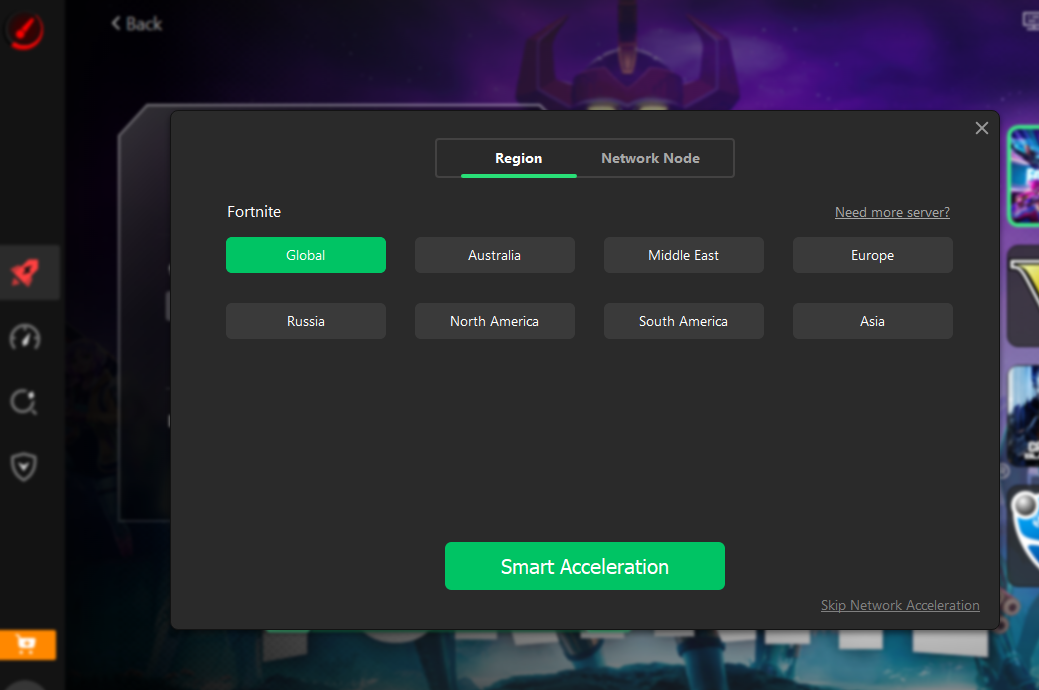
Smart Game Booster allows players to change game regions primarily through its Network Acceleration feature. This acts as a gaming-oriented tool designed to route internet traffic through dedicated optimized international servers.
The game booster connects to a global network of over 500 dedicated game servers (nodes) across North America, Europe, Asia, South America, Australia, and the Middle East. Changing server nodes alters the apparent IP location, so you can access geo-restricted game servers or titles not available in the original region.